

Download PDF
Click here to download a PDF with this information in English & Spanish.
Getting Started
Download The App
The Pikmykid App is available for download on your smartphone’s app store (Google Play, Apple App Store or Windows). Scan below to download.

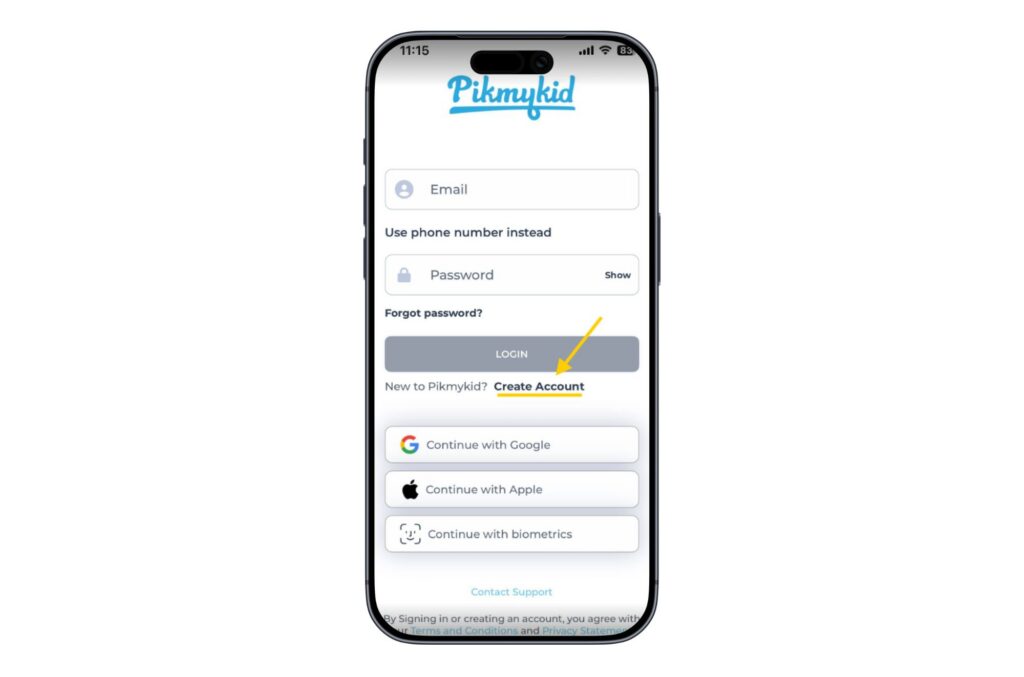
Create An Account
Once you’ve downloaded the Pikmykid App, select “Create Account” & follow the prompts to sign up. You will verify your email address & phone number before completing your registration. Each delegate will need to register on their own smartphone with their own information.
How To See A Child
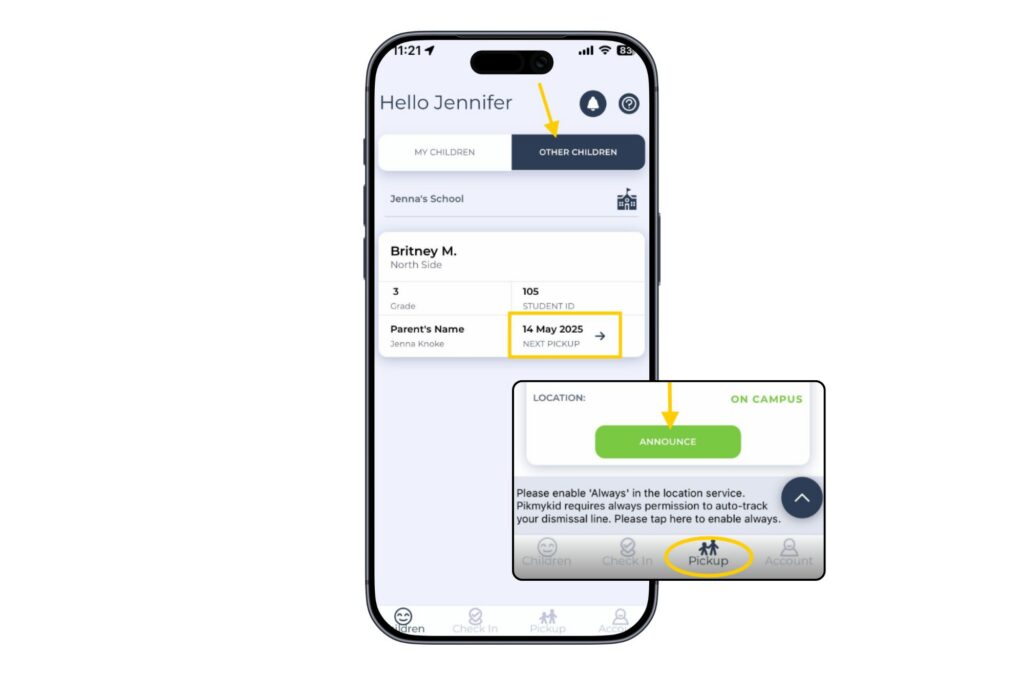
In order to see a student on your “Children” Homepage, make sure the enrolled parent has added your name & phone number to one or more days on the student’s calendar.
Select the “Other Children” to view students you have been delegated for pickup. Click on the date to see any additional details about the delegation.
On the assigned day, the child will show on your “Pickup” tab. Select the “Announce” green button to announce your arrival.
Please Note “Announce” is only available on the assigned days, while at the school campus & once dismissal has started.
Contact Us
Need Help? If you’re unable to see the student’s name on your “Children” tab, please send us an email at [email protected]. Make sure to include the name of the school & the name of the child.
Cómo Empezar
Descarga La Aplicación
La aplicación está disponible para su descarga desde la tienda de aplicaciones de su teléfono inteligente (Google Play, App Store o Windows).
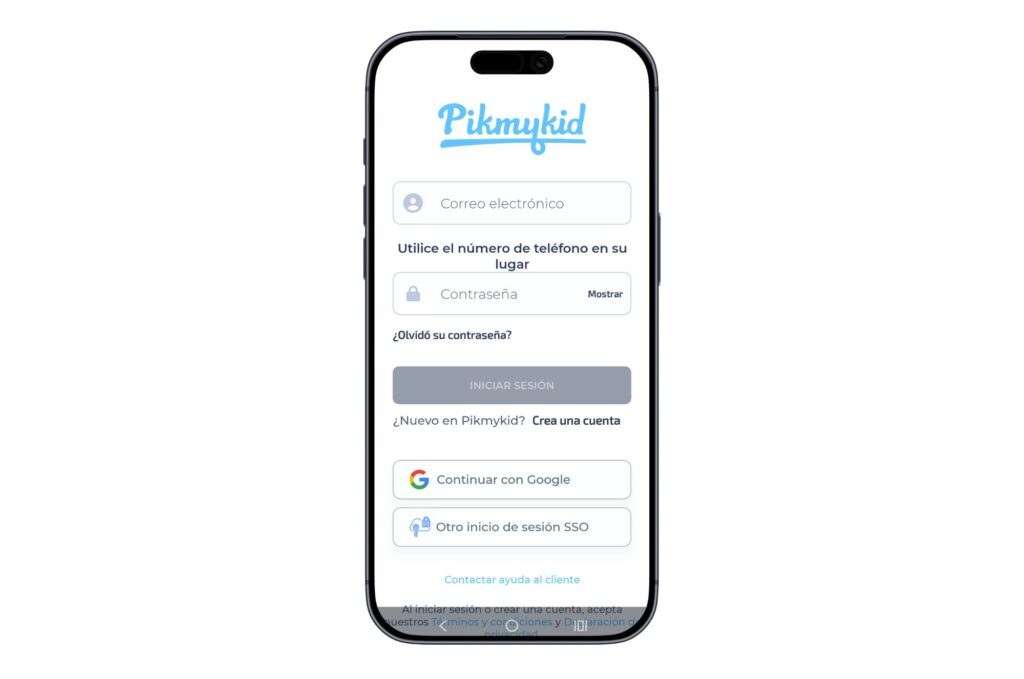
Crea Una Cuenta De Usuario
Una vez que haya descargado la aplicación Pikmykid, seleccione “Crea una cuenta” y siga las instrucciones para registrarse.
Cada delegado necesitará registrarse en su propio teléfono inteligente con su información personal.
¿Cómo Ver A Un Niño/Niña?
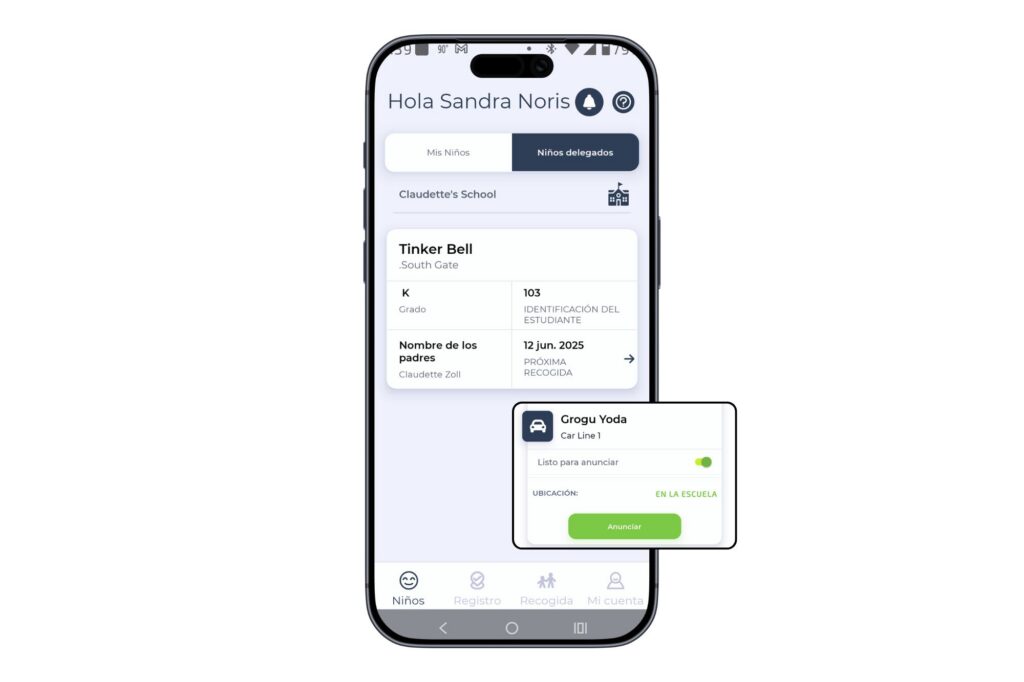
Para ver a un estudiante en su pantalla, asegúrese de que el padre inscrito haya agregado su nombre y número de teléfono a uno o más días en el calendario del estudiante.
Seleccione “niños delegados” para ver los niños a los que se le ha delegado recoger. Haga clic en la fecha para ver detalles adicionales sobre la delegación.
En el día asignado, seleccione la pestaña “Recogida” de la parte inferior de su pantalla, y luego el botón “Anunciar” para anunciar su llegada a la escuela.
Nota “Annunciar” solo es posible los días asignados, cuando esté en la escuela, y una vez que haya empezado la hora de salida.
Tien Preguntas
Envíe un correo electrónico a [email protected]. Incluya el nombre de la esuela y el nombre del niño junto a su pregunta o sugerencia.