
Download PDF
Click here to download a PDF with this information.
Bus Dismissal
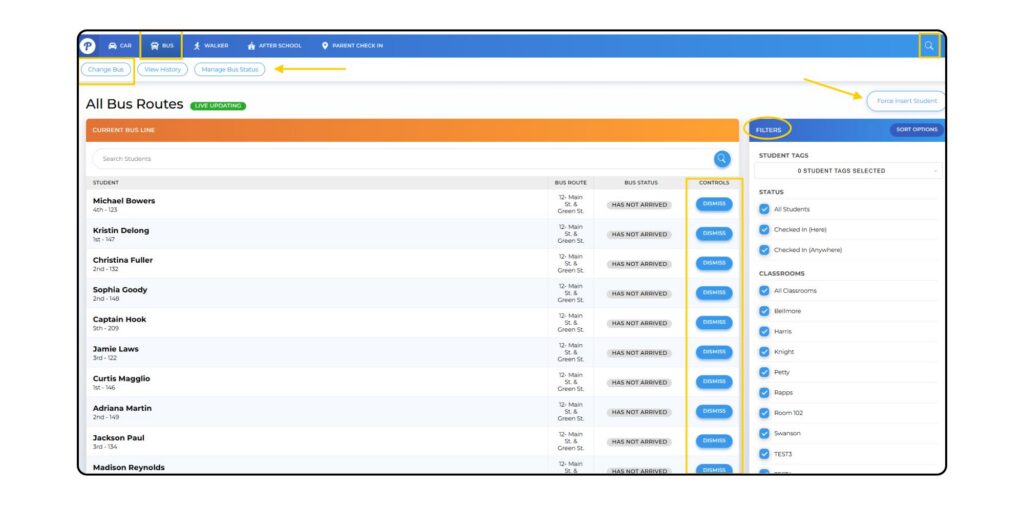
To dismiss students to their bus routes for the day, staff will use the Dispatcher and select Bus.
- The Manage Bus Status button can be used to notify staff when a bus has arrived or departed campus. This notification will be visible in both the Dispatcher and Dismissal Progress pages.
- Staff can adjust filters on the right side of the Dispatcher to view a specific list of students (e.g. by classroom or grade level).
- Staff can use the Change Bus button to filter students by bus route.
- Staff will click the blue Dismiss button for each student (or use the Board All option to dismiss in bulk) when students have been boarded onto the bus.
- In the event of a last minute calendar change, the Force Insert Student option can be used to quickly add a student to a bus route for dismissal.
- Staff can Undo a Dismissal if needed (click on the magnifying glass > search stuent by name or ID number > select student > select Undo Dismissal). This will put the student back into the bus route they were dismissed from; staff can then use the blue Dismiss button to accurately dismiss the student.
Walker Dismissal
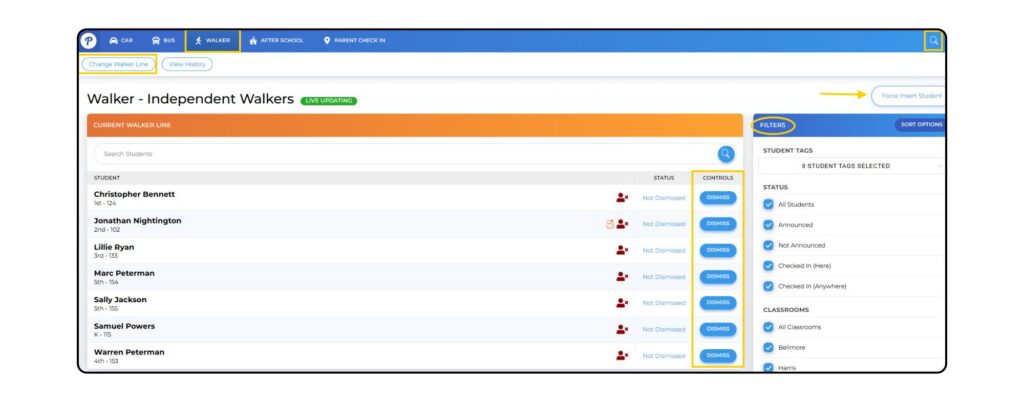
To dismiss walkers for the day, staff will use the Dispatcher and select Walker.
- Staff can adjust filters on the right side of the Dispatcher to view a specific list of students (e.g. by classroom or grade level).
- Staff can use the Change Walker Line to filter students by their assigned walker line.
- Staff will click the blue Dismiss button for each student when a student has been dismissed from the campus.
- In the event of a last minute calendar change, the Force Insert Student option can be used to quickly add a student to a walker line for dismissal.
- Staff can Undo a Dismissal if needed (click on the magnifying glass > search student by name or ID number > select student > select Undo Dismissal). This will put the student back into the walker line they were dismissed from; staff can then use the blue Dismiss button to accurately dismiss the student.
Guardians can also announce their arrival from the Parent App to notify staff that they are on campus to pick up their student(s).
After School Student Dismissal
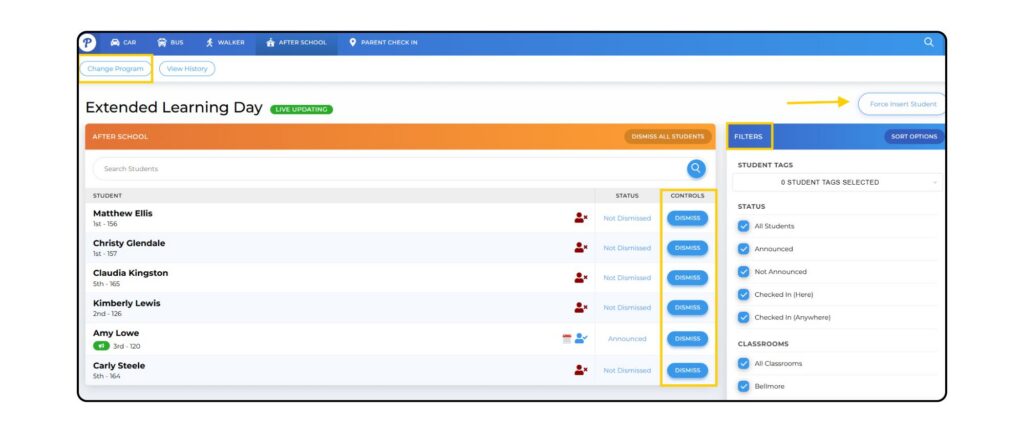
To dismiss students for the day from their After School Program, staff will use the Dispatcher.
- Select Dispatcher from the left sidebar of the dashboard and select After School.
- If needed, select the Change Program option to dismiss students from a specific program.
- Staff can use additional filters to sort the student list as needed.
- Staff will then select the blue Dismiss button when the student is dismissed to their guardian. This will timestamp when the student was dismissed for the day.
- Staff can Undo a Dismissal if needed (click on the magnifying glass > search student by name or ID number > select student > select Undo Dismissal). This will put the student back into the program they were dismissed from; staff can then use the blue Dismiss button to accurately dismiss the student.
Need to add a student to an After School program at the last minute? Use the Force Insert Student option to quickly change the student’s dismissal method.
Guardians can also announce their arrival from the Parent App to notify staff that they are on campus to pick up their student(s).
Using The Check-In Feature
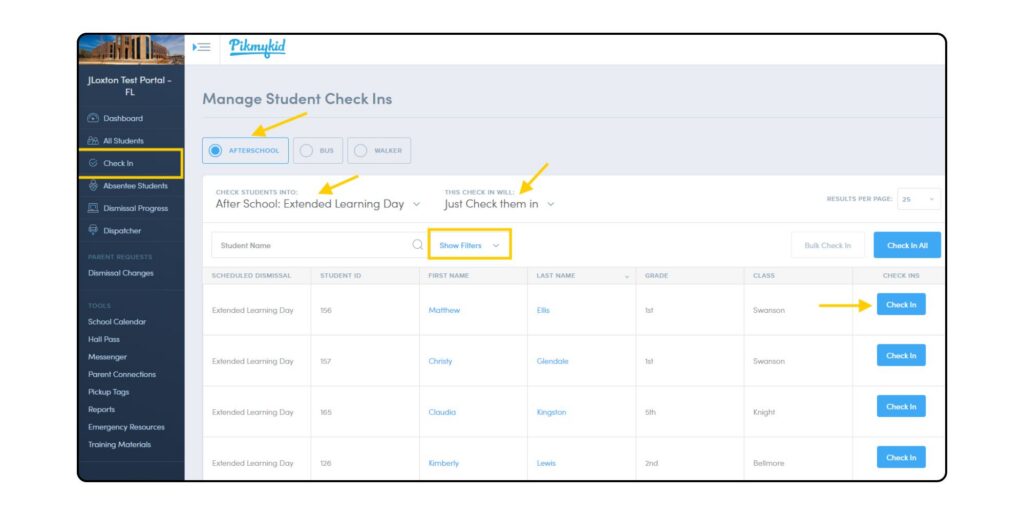
Staff can check students into a location on campus prior to dismissal, creating a two-step check-in process.
- Select Check In from the left sidebar of the dashboard.
- Select program to Check Students Into and This Check In Will: Just Check Them In.
The Change Pickup Method option will make a calendar change for the student(s) and reassign the student(s) to the selected program for dismissal.
- Staff can use filters as needed to locate students within the list.
- Students can be checked in to the location by clicking the blue Check In button for each student OR by using the Check In All option to check in all students at once.
Using The In-Transit Feature
To enable this feature in the portal, please have your school administrator email our team at [email protected].
Staff also have the option of marking students In-Transit – this indicates a student has been sent from their classroom or supervision area to their dismissal location.
Staff viewing the Dismissal Progress page will mark the student as In-Transit by clicking on the person icon in the Pickup Mode column (to display pickup mode column, select filter icon > columns > Pickup Detail).
Once selected, the icon will appear on the Dispatcher page, allowing dismissal staff to see that the student is en route to the dismissal area.