
Download PDF
Click here to download a PDF with this information.
Staff-Created Passes
Staff members can create passes for students from the school portal.
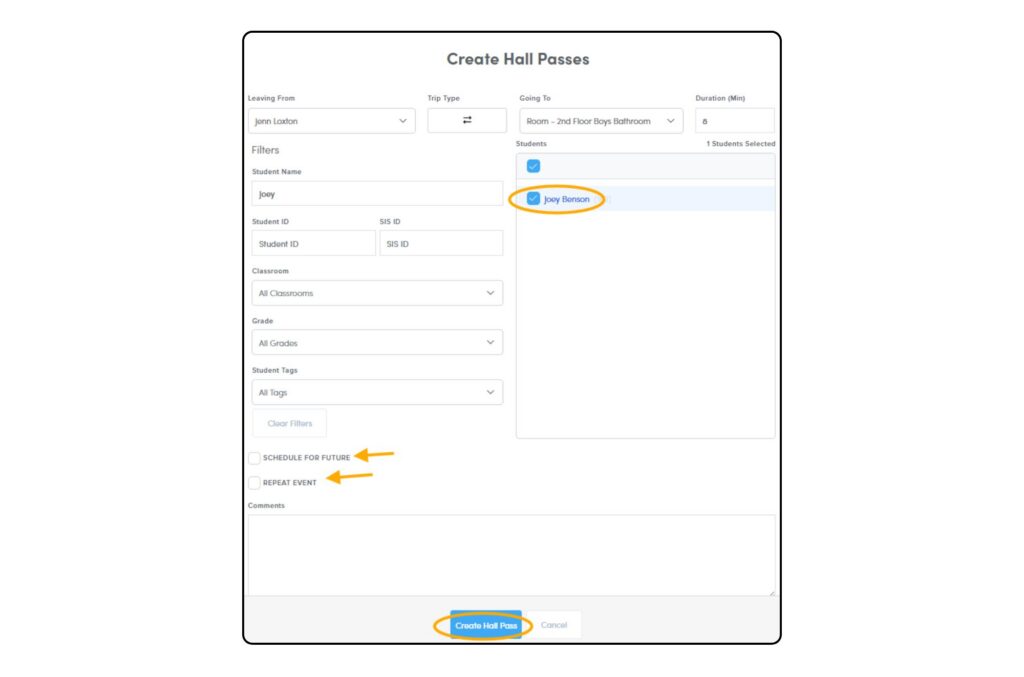
- Once logged in to the portal, click Hall Pass on the left sidebar.
- From the Hall Pass management page, click Create Hall Pass.
- The Leaving From room will always be listed as the staff member logged in, but can be changed if needed. Then select Going To destination.
- Then select the student(s). Filters can be used to search for a student or the student’s name can be selected from the list on the right.
- Then select Create Hall Pass – the hall pass is now Active for the student(s).
Hall Passes can also be scheduled for a later time in the day or scheduled as a repeating event for students who need to leave the classroom on a frequent basis.
Managing Hall Passes
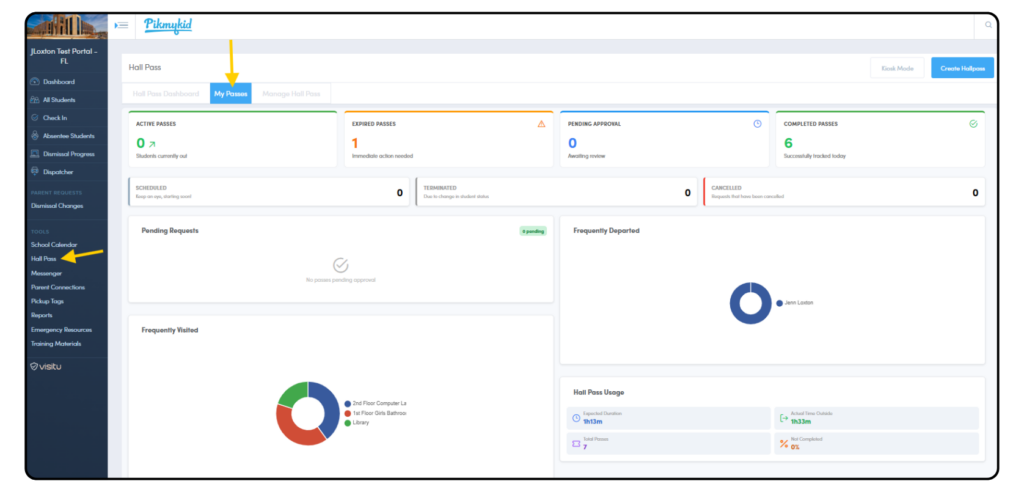
From the interactive Hall Pass Dashboard, staff members can get an overview of school-wide hall pass activity – perfect for reviewing trends and usage!
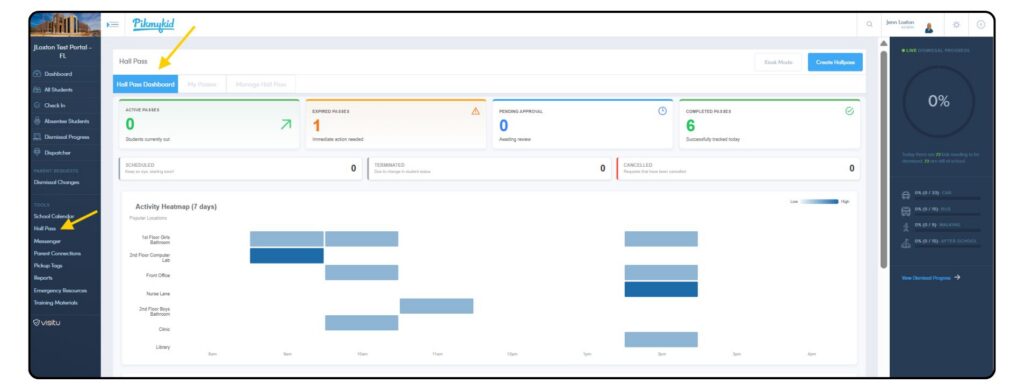
My Passes allows individual staff members to review the activity associated with the hall passes they have created and managed. Staff users can click on the data for a deeper dive into the information.
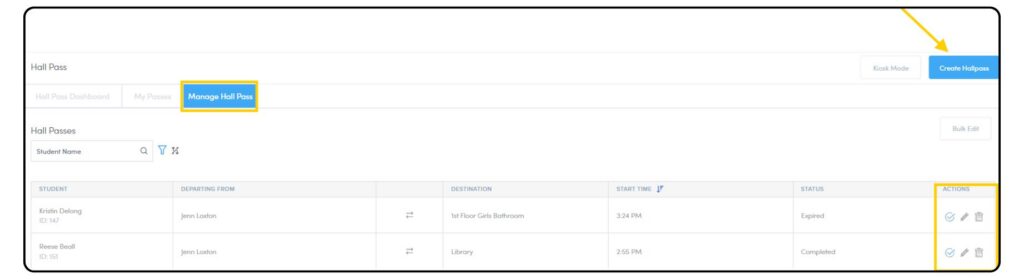
Manage Hall Passes provides a detailed view of all hall passes. Staff can sort and organize passes using a variety of filters. From this page, staff can create, edit, and complete passes.
Once a student’s trip is finished, staff should click the checkmark to complete the pass. This records a timestamp showing when the student returned.
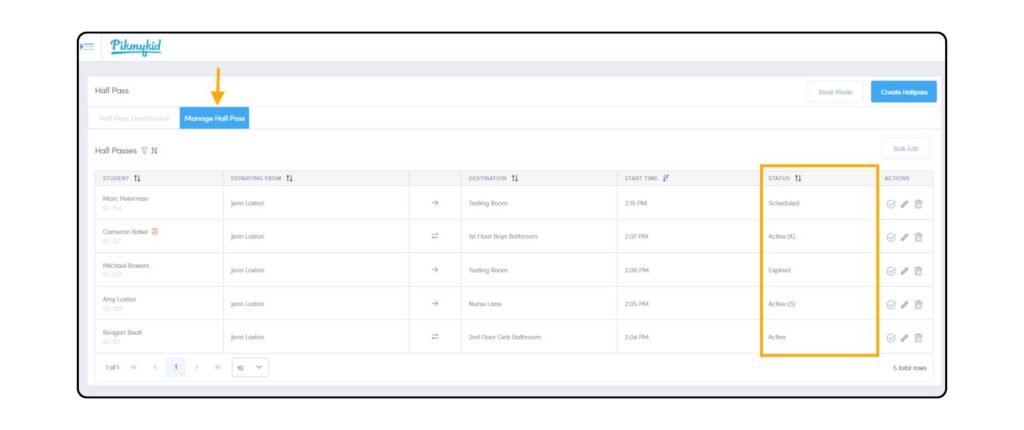
Hall Pass Status
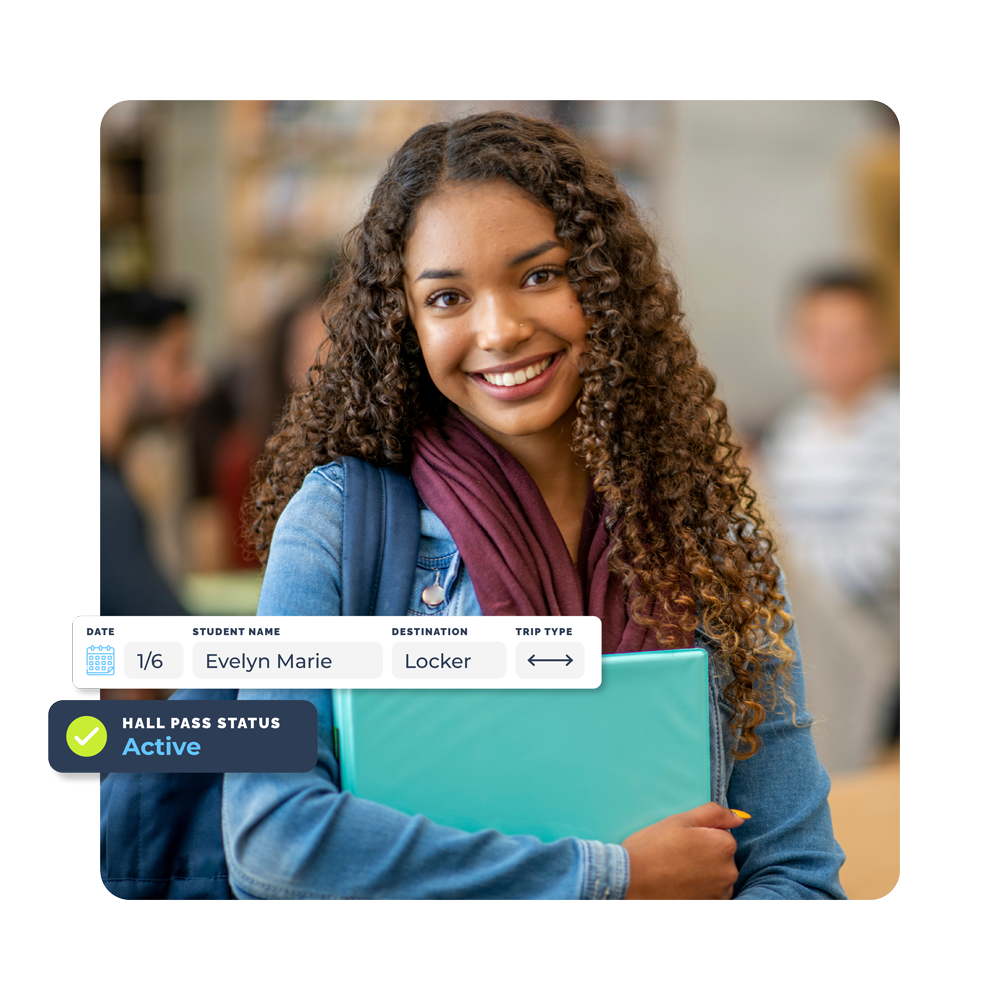
- Active Hall Pass is in progress.
- Completed Student has returned to class and pass has been marked complete.
- Expired Hall Pass has expired based on time allotted for that location.
- Scheduled Pass will be active at a later time.
- Terminated Pass was not completed, but another action has taken place (e.g. student has been dismissed, left early, or checked-in to a location).
- (S) Pass was created in Student Portal.
- (K) Pass was created in the Kiosk.
Student-Created Passes In Kiosk Mode
A kiosk station can be created so students can make their own passes. To create a Kiosk on any device, click the Kiosk Mode tab on the top right on the Hall Pass page. Determine which destinations and the students you’d like to allow to create passes at the kiosk; you can also filter by classroom and grade to select specific students. Then create a numeric password that will be used when you are ready to exit Kiosk Mode on the device.
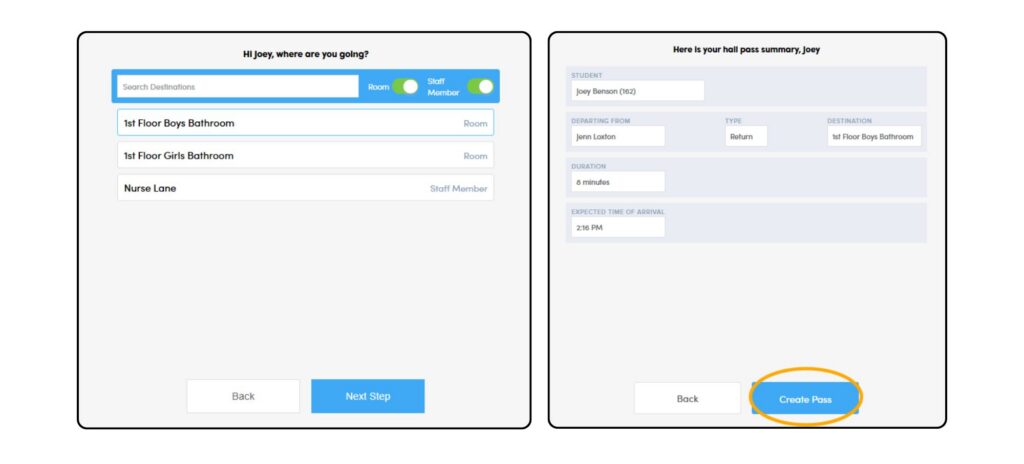
Create A Pass On The Kiosk
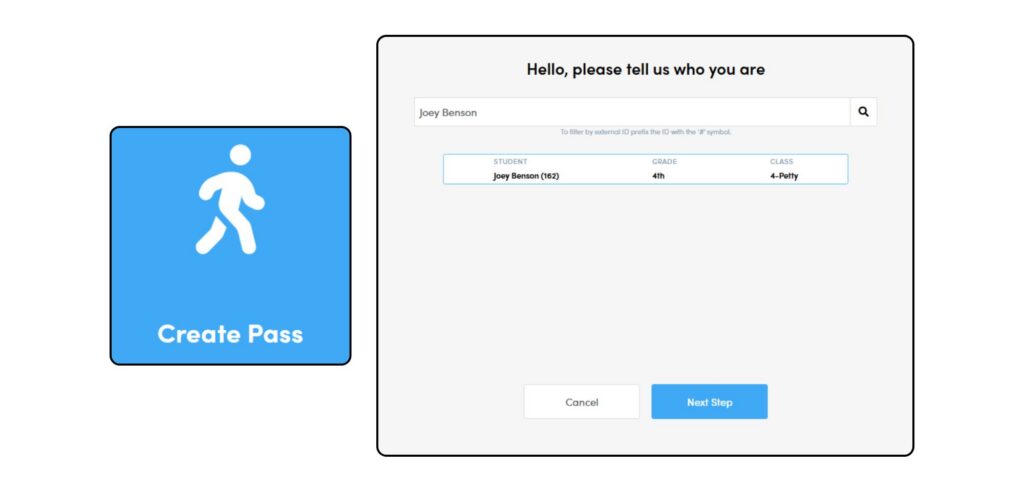
- Student will click on Create Pass.
- Student will then search either their full name, their Pikmykid ID or their external school ID (e.g. #123456) and click Next Step.
- Student will select where they are going.
- The student will receive a summary of their pass information and click Create Pass.
Complete A Pass On The Kiosk
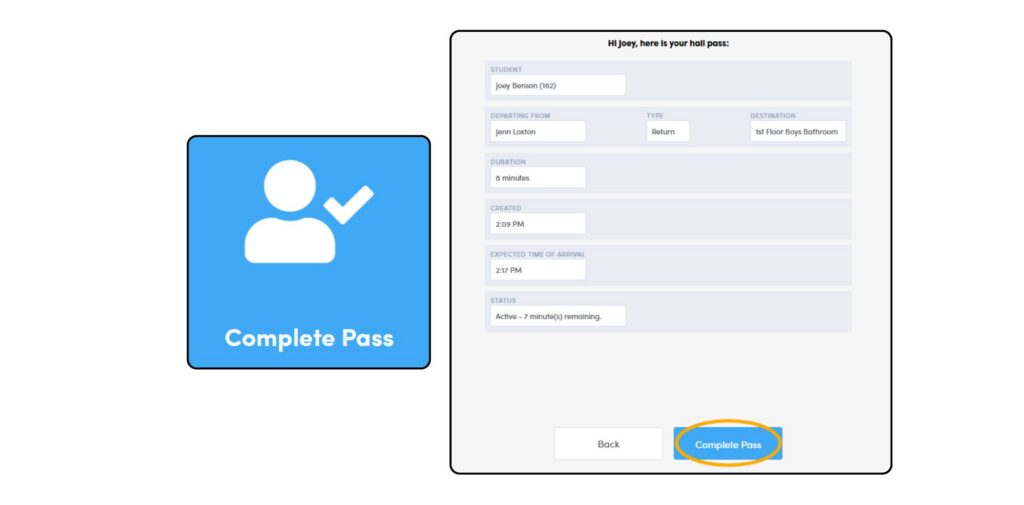
- Student will click Complete Pass.
- Student will search again with either their full name, their Pikmykid ID or their external school ID.
- The student will receive a summary of their pass information and click Complete Pass (creating a timestamp of when the student returned).