
Download PDF
Click here to download a PDF with this information.
Initiate The Alert
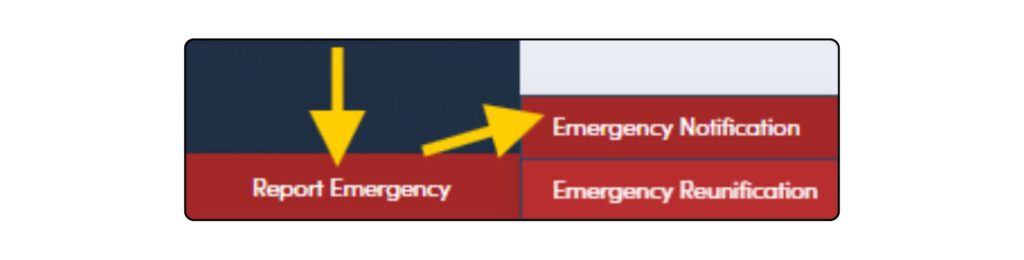
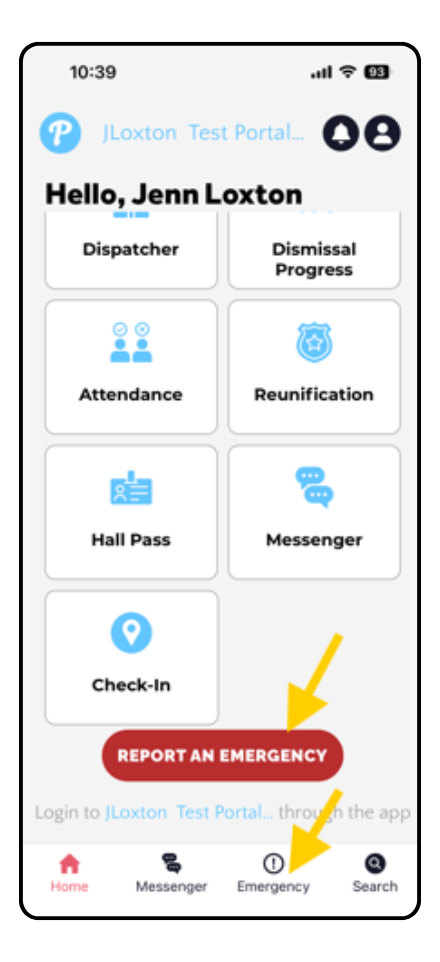
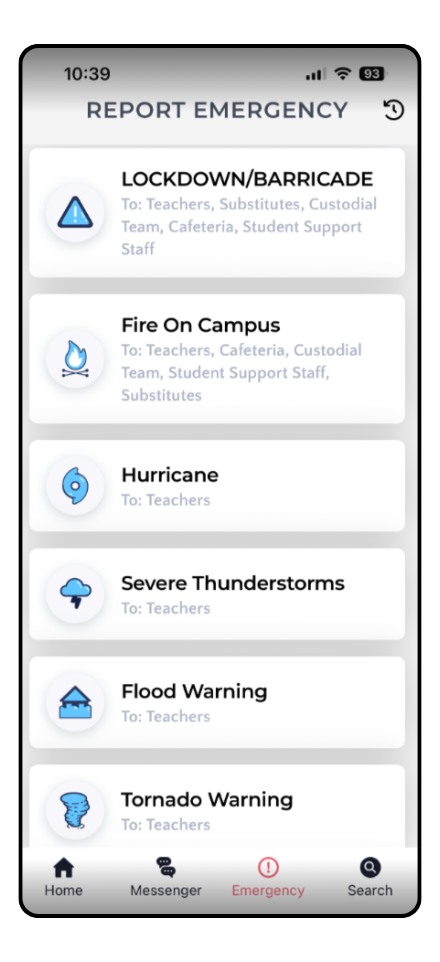
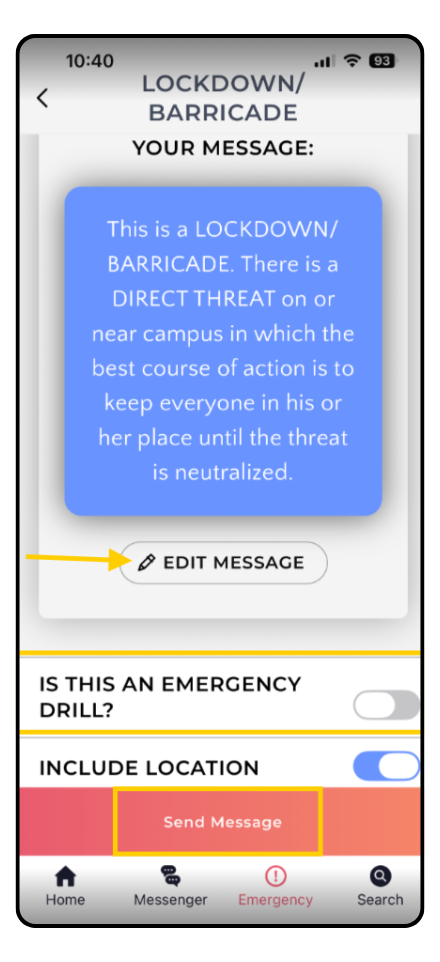
- From the portal dashboard, click the Report Emergency button > Emergency Notification. In the Staff App, use the Report Emergency button or the Emergency icon along the bottom.
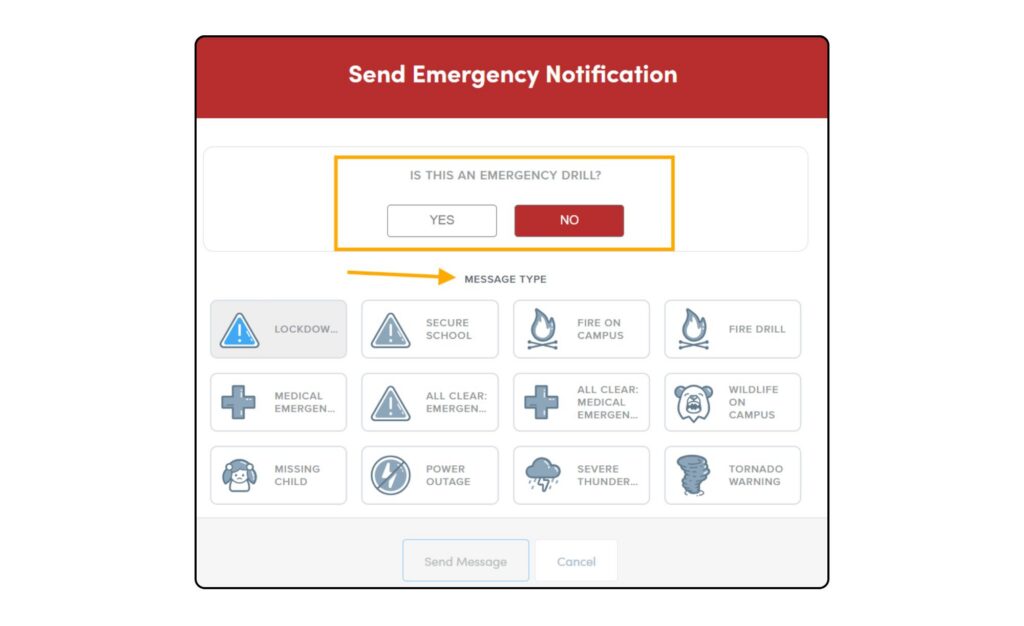
- Next, determine if the event is a drill or not and choose the type of emergency message.
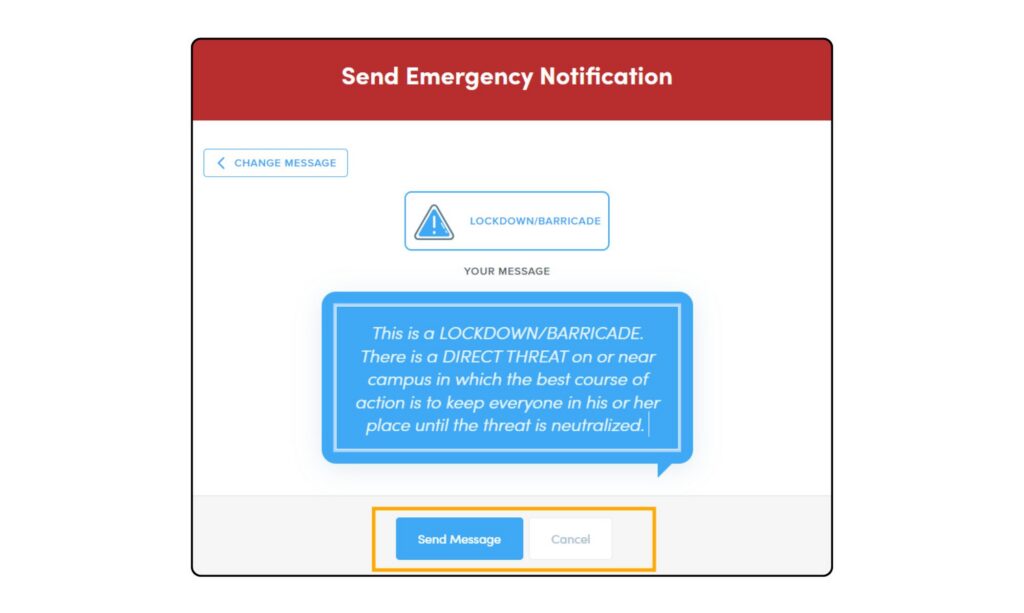
- After selecting the message, the system will display the predetermined message (the message can be edited or additional information can be added if needed- to do this, ensure the setting is turned on Settings Wheel > Emergency > Allow users to input additional information when submitting an emergency notification ). Then click Send Message.
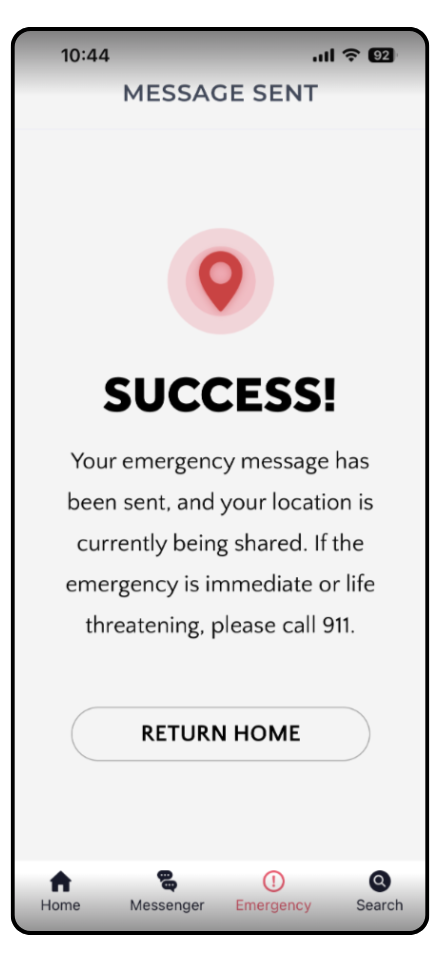
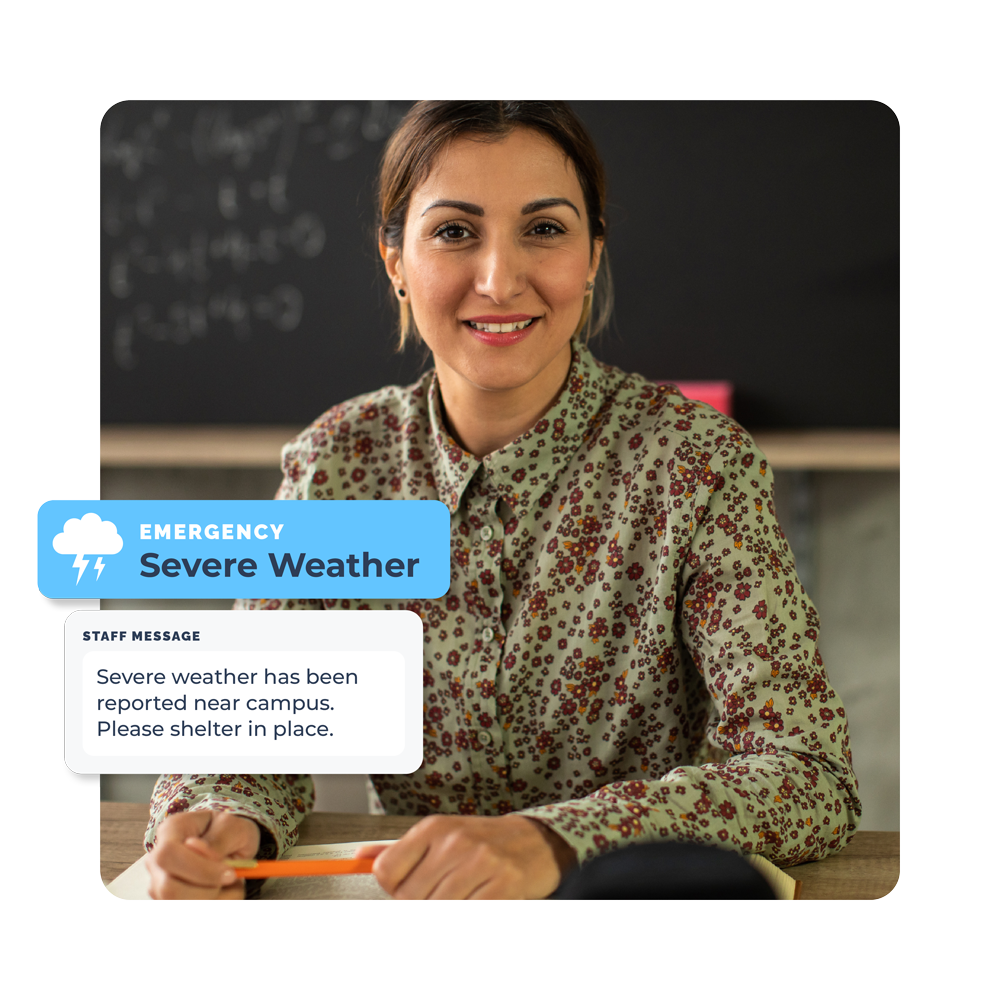
- Once sent, staff will receive the message through text, email, phone call, and if they have the Pikmykid Staff App, a push notification will also be sent. If staff are logged into the portal, a popup will appear in the dashboard.
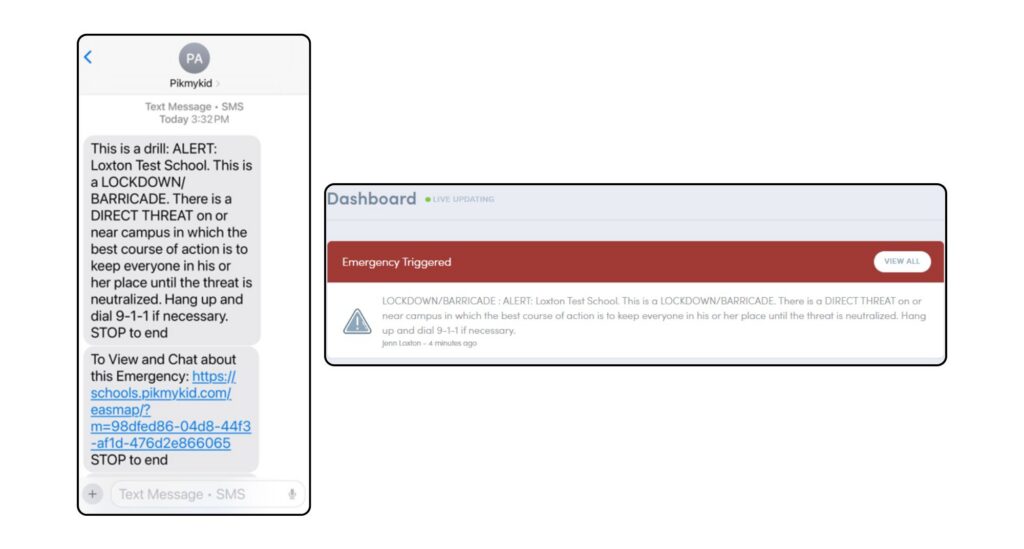
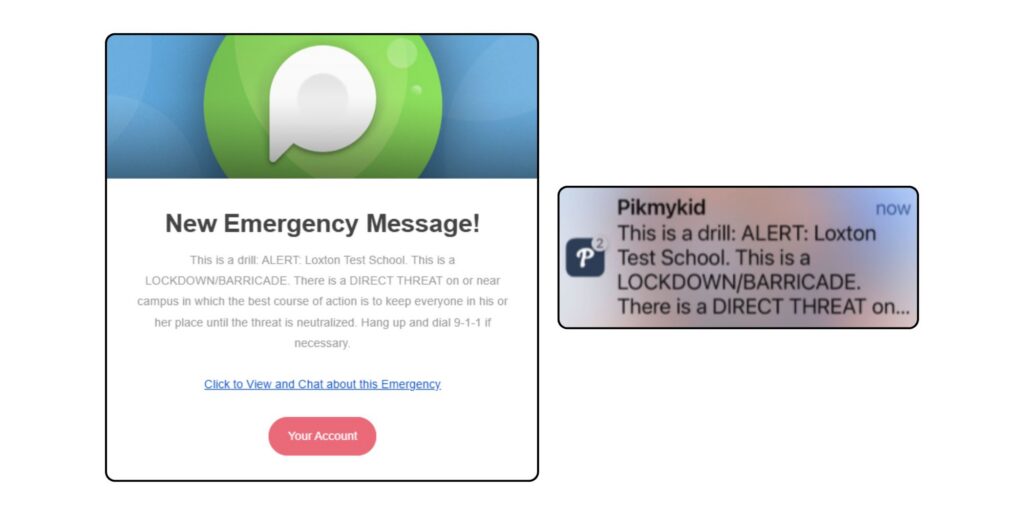
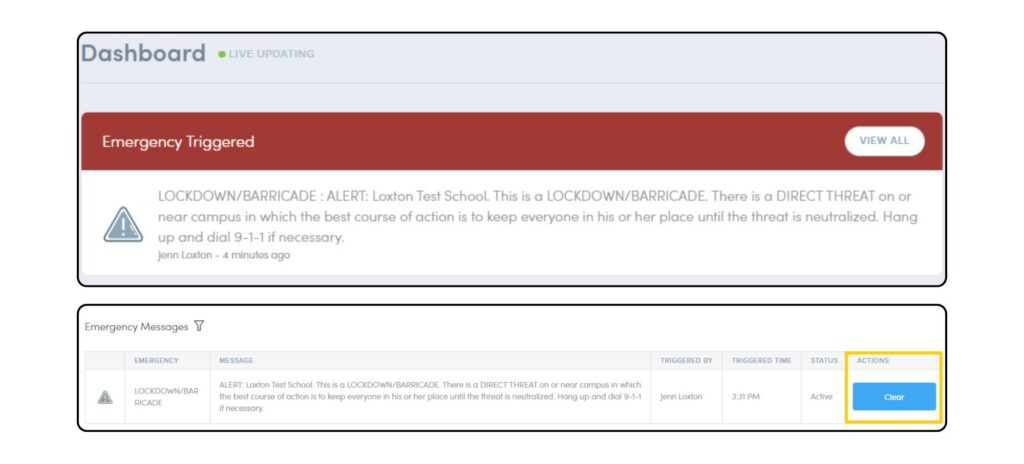
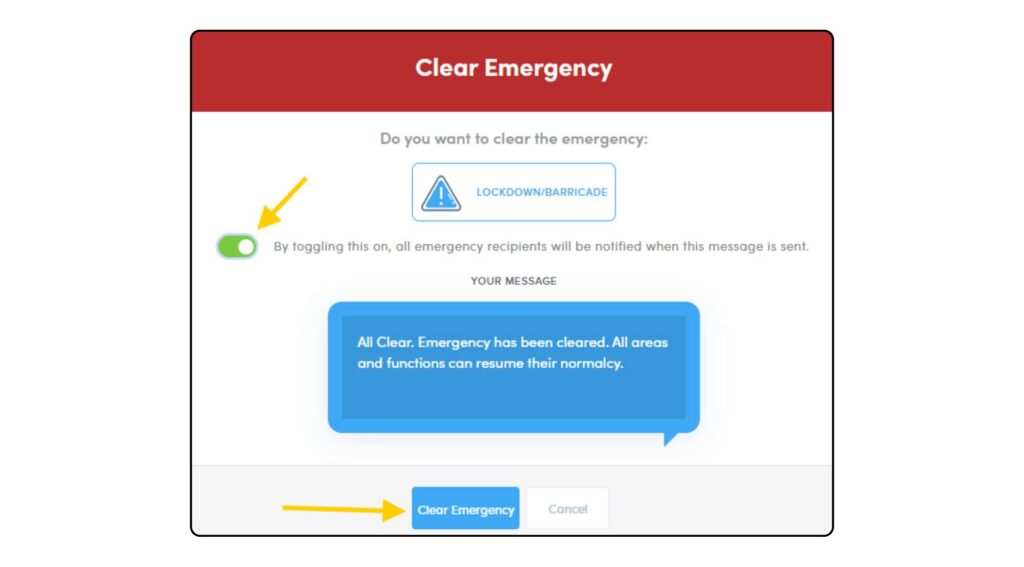
- Once the drill or emergency is over, a school admin can clear the emergency notification from the portal. Select View All from the notification popup on the dashboard and click Clear. A popup will appear for additional confirmation to clear the notification. Once the notification is cleared, staff will receive notifications via phone, email, text and if using the Staff App, a push notification.