
Download PDF
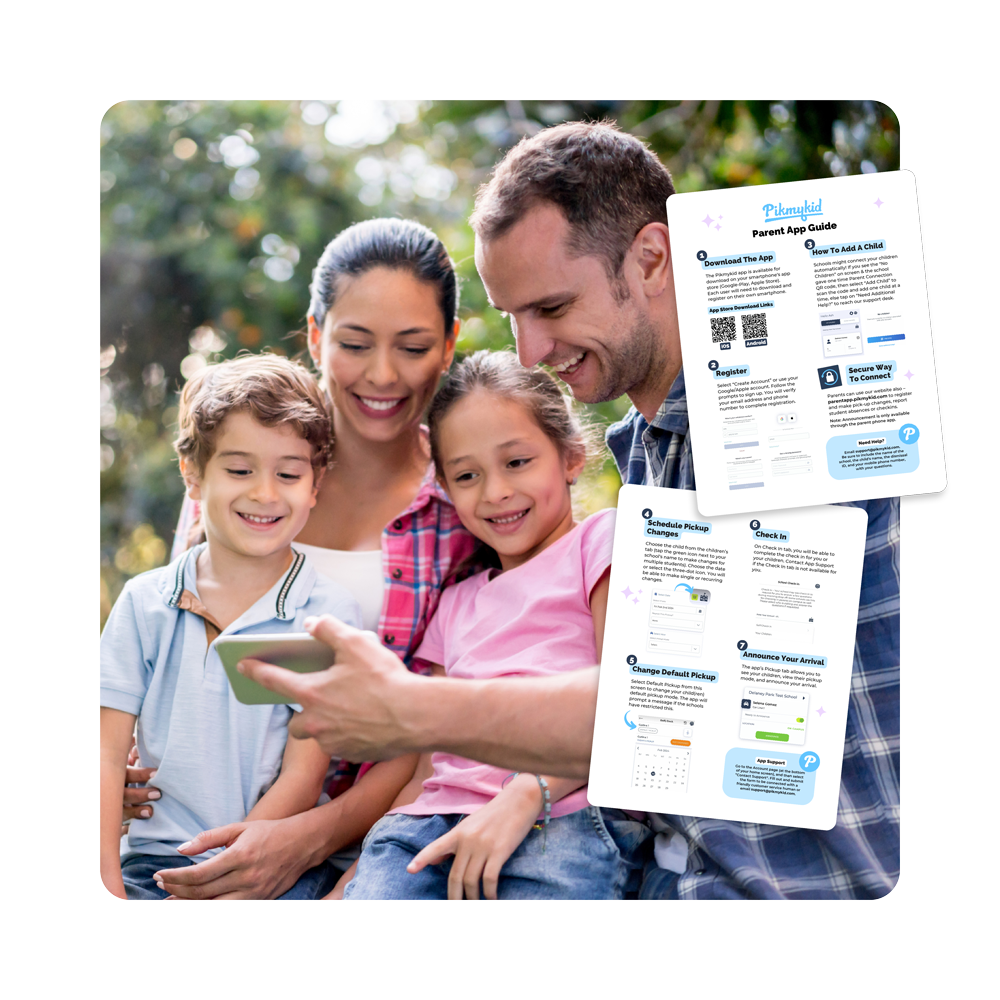
Click here to download a PDF with this information in English & Spanish.
Getting Started
Download The App
The Pikmykid app is available for download on your smartphone’s app store (Google-Play, Apple Store). Each user will need to download and register on their own smartphone.

Register
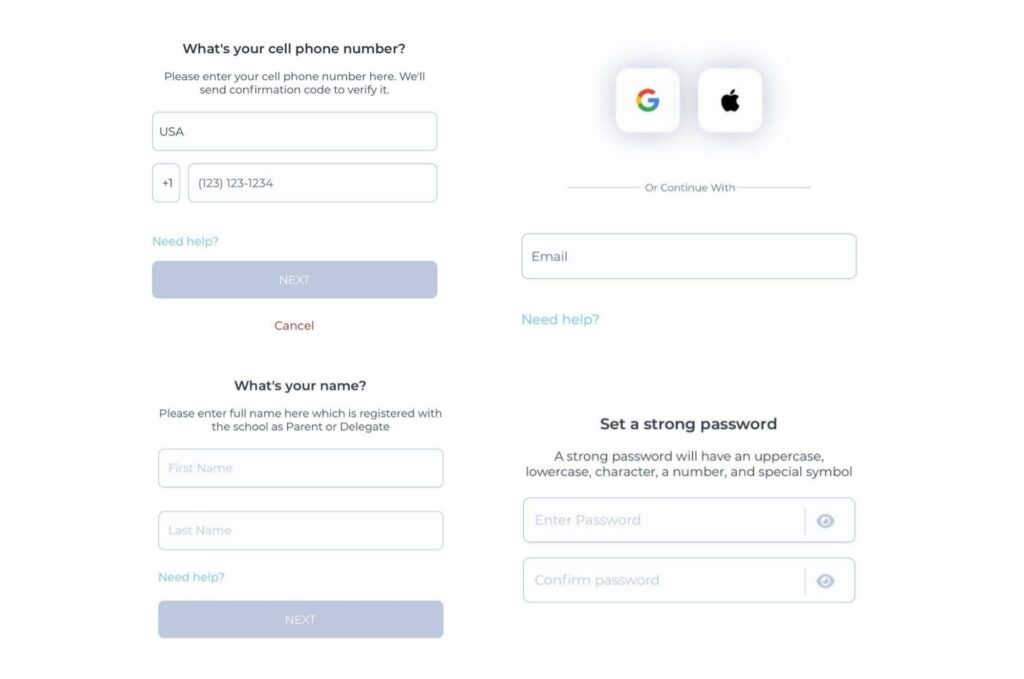
Select “Create Account” or use your Google/Apple account. Follow the prompts to sign up. You will verify your email address and phone number to complete registration.
How To Add A Child
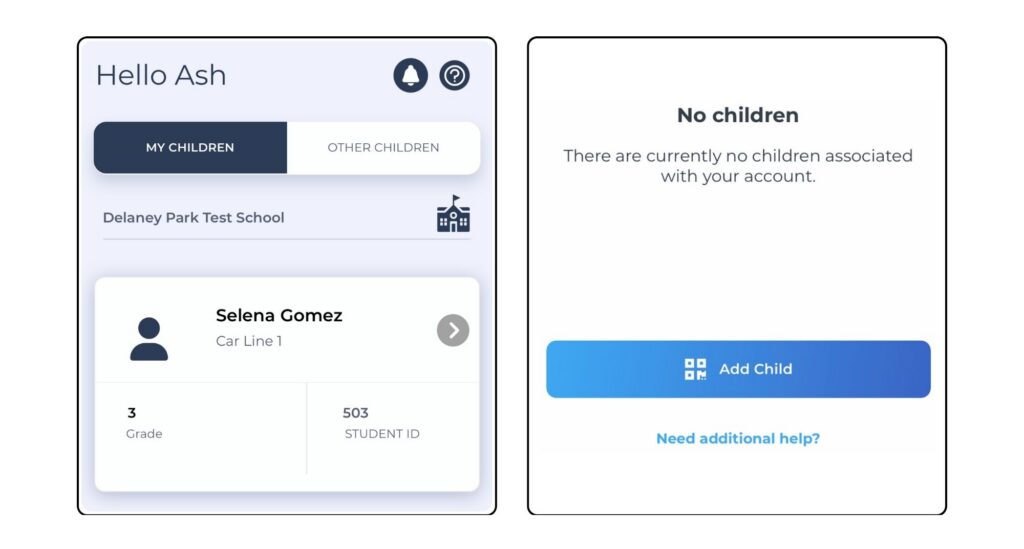
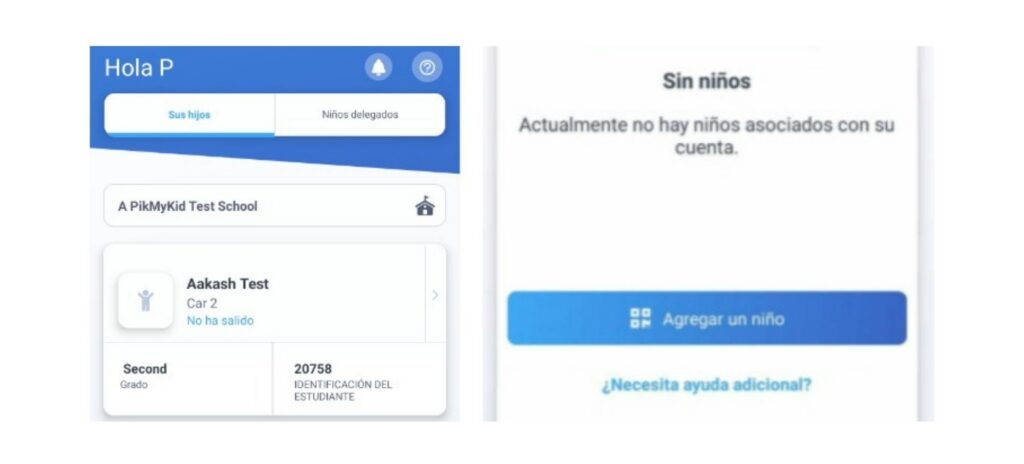
Schools might connect your children automatically! If you see the “No Children” on screen & the school gave one time Parent Connection QR code, then select “Add Child” to scan the code and add one child at a time, else tap on “Need Additional Help?” to reach our support desk.
Schedule Pickup Changes
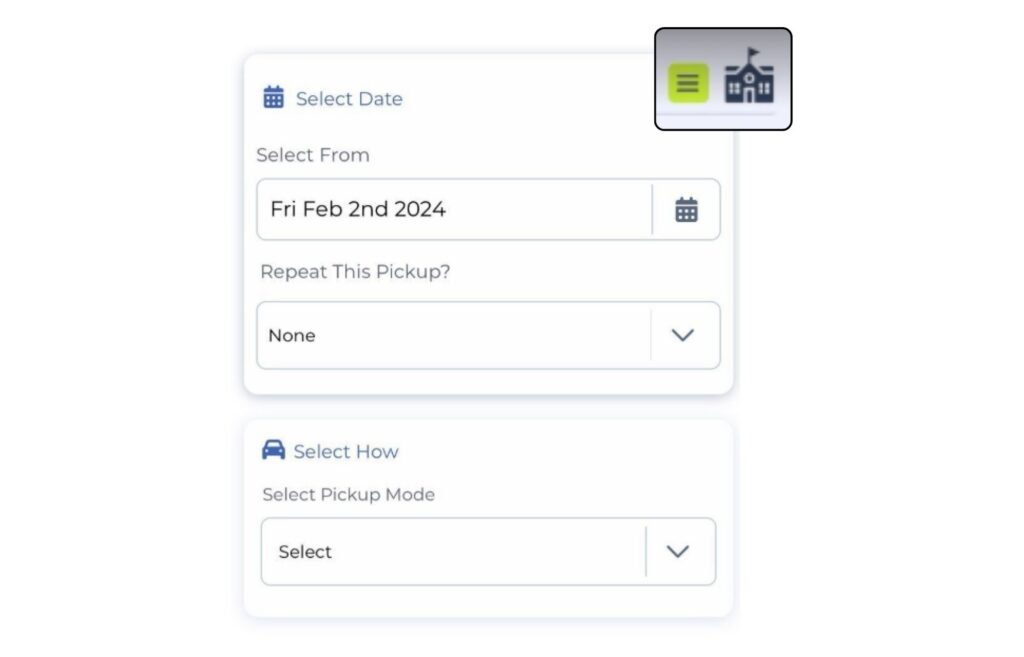
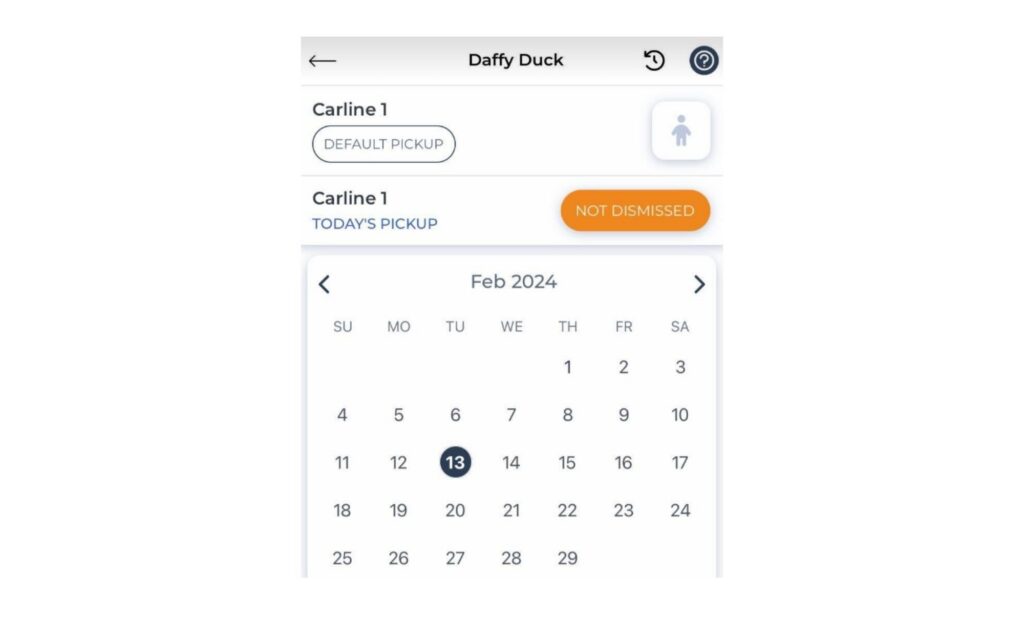
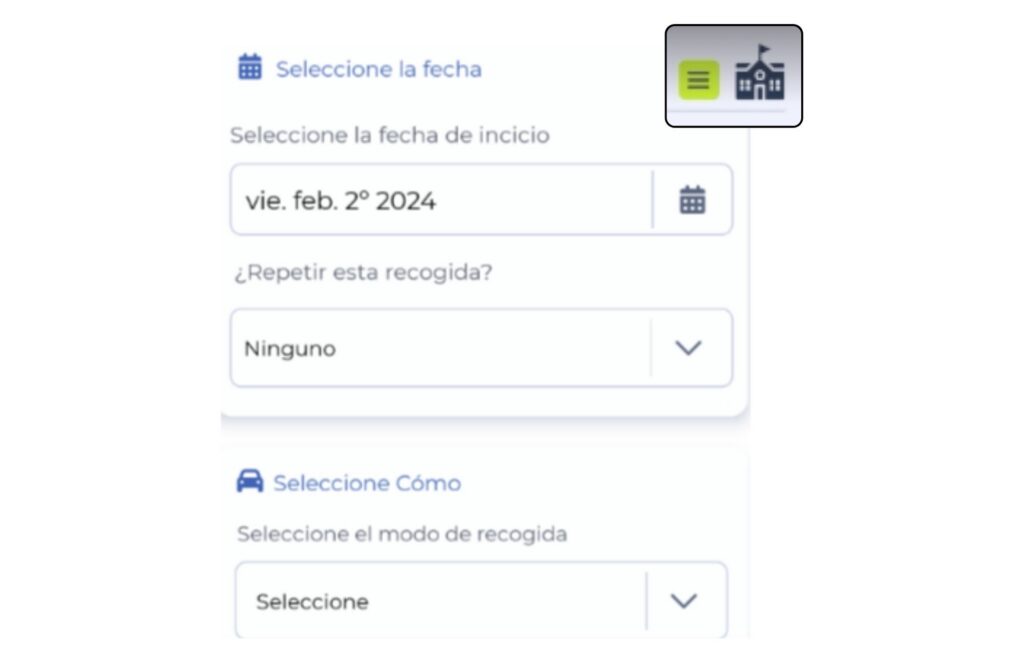
Choose the child from the children’s tab (tap the green icon next to your school’s name to make changes for multiple students). Choose the date or select the three-dot icon. You will be able to make single or recurring changes.
Change Default Pickup
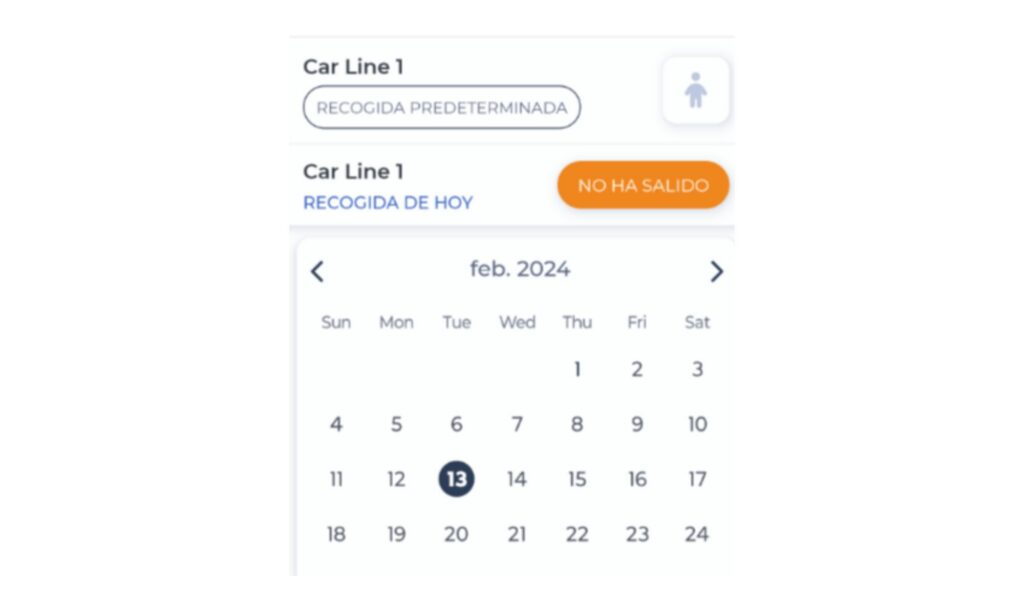
Select Default Pickup from this screen to change your child(ren) default pickup mode. The app will prompt a message if the schools have restricted this.
Check In
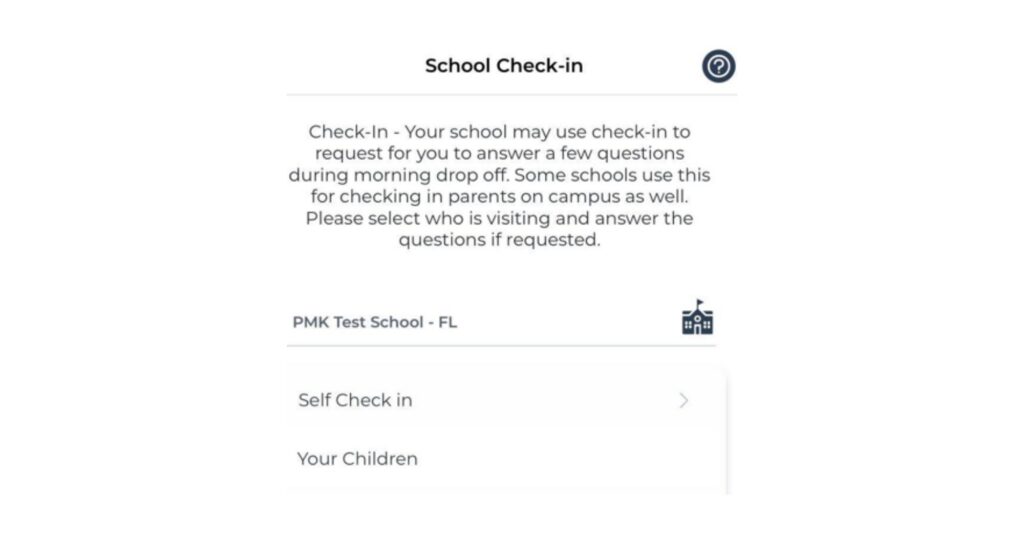
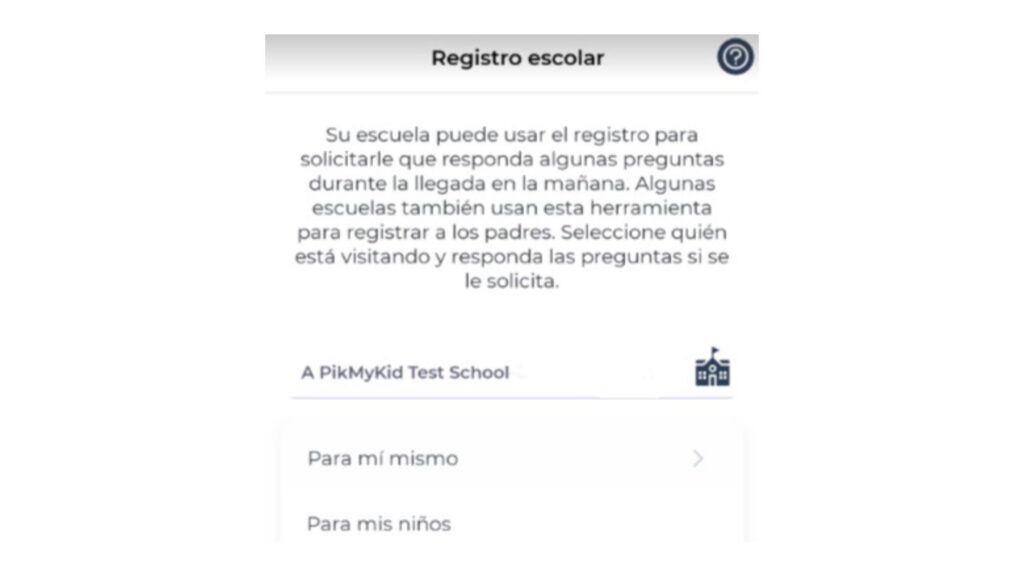
On Check In tab, you will be able to complete the check in for you or your children. Contact App Support if the Check In tab is not available for you.
Announce Your Arrival
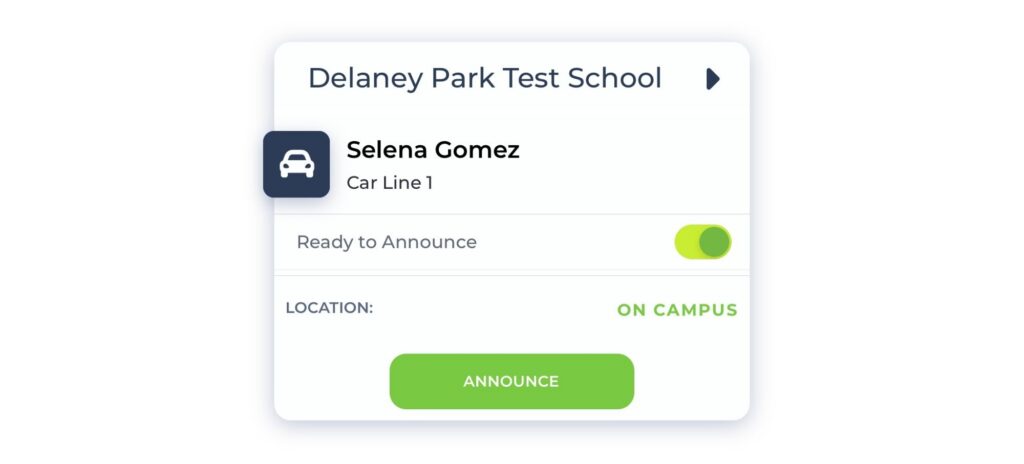
The app’s Pickup tab allows you to see your children, view their pickup mode, and announce your arrival.
Secure Way To Connect
Parents can use our website also – parentapp.pikmykid.com to register and make pick-up changes, report student absences or check-ins.
Announcement is only available through the parent phone app.
App Support
Go to the Account page (at the bottom of your home screen), and then select “Contact Support”. Fill out and submit the form to be connected with a friendly customer service human or email [email protected].
FAQ
How do I add a change to my child’s dismissal schedule?
- Choose the child from the children’s tab (tap the green icon next to your school’s name to make changes for multiple students).
- Choose the applicable calendar date when you want the change to start OR select the three-dot icon on your bottom right corner.
- Select Change Pickup.
- Confirm the start date is correct.
- Select one of the options to repeat the change if applicable and choose the last applicable day to be included.
- Select the desired pickup option from the drop-down. Then select who is picking up.
- Review the Pickup Summary and Confirm Change to save your selection – you will see a green notification on the top of the screen with the confirmation of the changes.
How do I announce my arrival to the school?
- Parents can only announce at school, during the set dismissal hours, if the school has the Announce feature enabled on the school portal.
- Make sure your phone’s location services are enabled on both your phone and your Pikmykid parent app.
- Stop at the stop sign and select the GREEN ANNOUNCE button on your Pick Up tab.
If your school is using the hands-free announcement feature, review the option is enabled on the Account tab and that you have granted the correct location permissions.
How do I manage my delegates?
- Select Account at the bottom of your screen, then select Manage Approved Contacts.
- Select the Create Contact icon (person with a plus sign) to create a new contact. You can also Edit, Delete, or Deactivate delegates as needed by selecting their names. Inactive delegates will be grayed out and they won’t be visible on your list when adding a Delegation to your child’s calendar.
- When editing a contract, you can add photos to delegates, mark them as emergency contacts and select their relationship to each child in your app.
Delegates are not able to see your child on their app until you assign them to your child’s calendar for specific dates.
Cómo empezar
Descargar La Aplicación
La aplicación está disponible para su descarga desde la tienda de aplicaciones de su teléfono inteligente (Google Play, App Store).
Registrarse
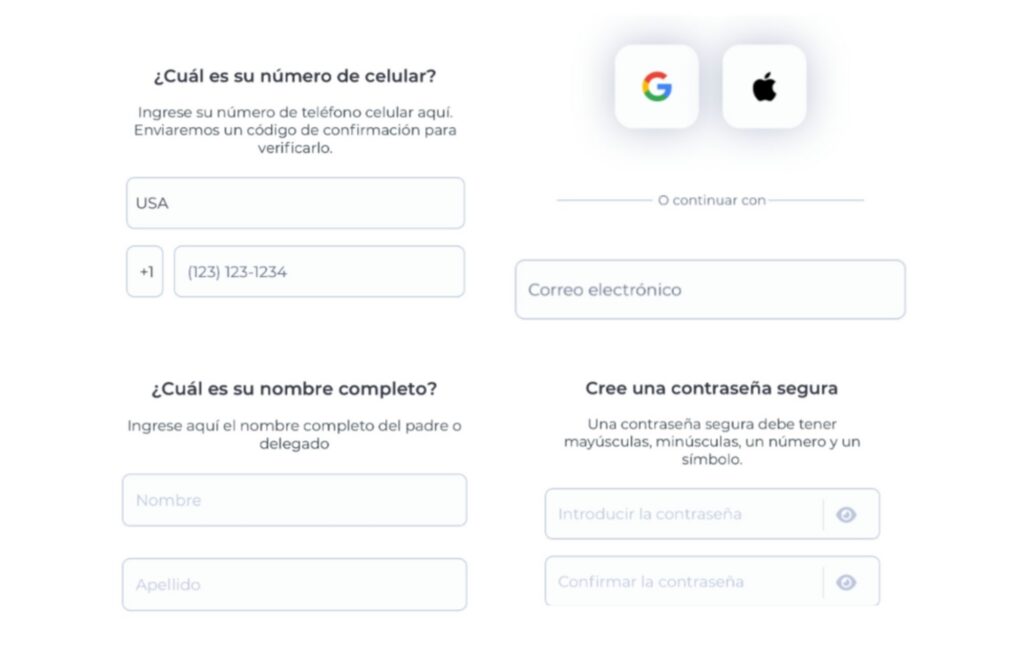
Seleccione “Crear cuenta” o utilice su cuenta de Google/Apple. Siga las indicaciones para registrarse. Verificará su dirección de correo electrónico y número de teléfono para completar el registro.
Agregar Un Niño/Niña
¡Las escuelas pueden conectar a sus hijos automáticamente! Si ve “Sin niños” en la pantalla y la escuela le dio un código de un solo uso, seleccione “Agregar un niño” para escanear el código y agregar un niño a la vez; de lo contrario, toque “¿Necesita ayuda adicional?” para asistencia técnica.
Agregar Cambios De Salida
Elija el nombre en la pestaña Niños (toque el ícono verde al lado del nombre de su escuela para realizar cambios para varios estudiantes). Elija la fecha o seleccione el ícono de tres puntos. Podrás realizar cambios únicos o recurrentes.
Cambiar El Modo De Recogida Más Usado
Seleccione Recogida predeterminada en esta pantalla para cambiar el modo de recogida más usado para su(s) hijo(s). La aplicación mostrará un mensaje si las escuelas lo han restringido.
Registro Escolar
En la pestaña Registro, podrá completar el registro para usted o sus hijos. Comuníquese con Asistencia Técnica si la pestaña Registro no está disponible.
Anunciar Su Llegada A La Escuela
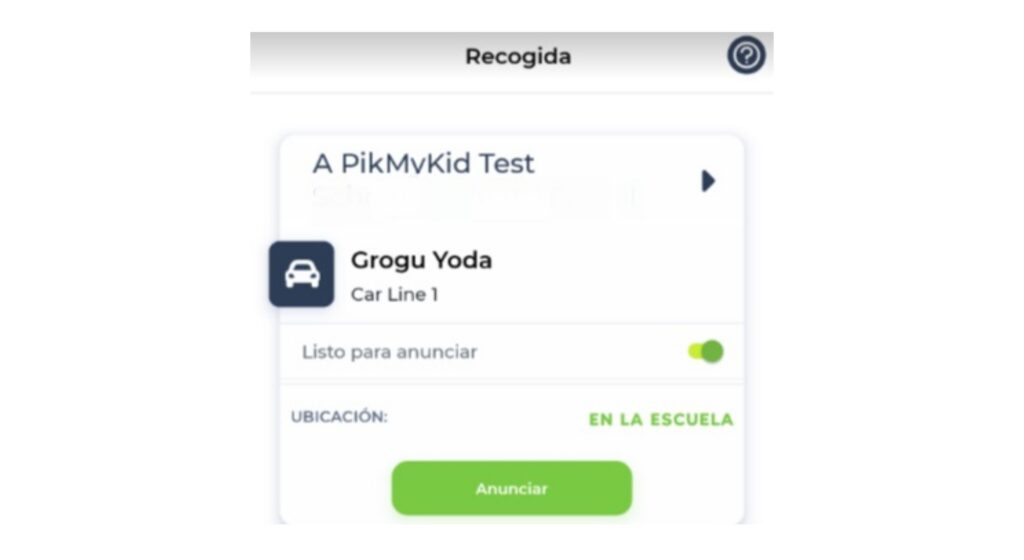
La pantalla “Recogida” le permite ver a sus hijos, ver su modo de recogida y anunciar su llegada a la escuela.
Conexión Segura
Los padres pueden usar nuestro sitio web parentapp.pikmykid.com para registrarse y hacer cambios de despido. Nota: El anuncio solo está disponible a través de la aplicación de teléfono.
Asistencia Técnica
Seleccione “Mi Cuenta” (en la parte inferior de su pantalla), luego seleccione “Contactar ayuda al cliente”. Llene el formulario para ser asistido por un agente humano amigable o envíe un mensaje a [email protected].
FAQ
¿Cómo agrego un cambio al calendario de salida de mi hijo?
- Elija el Niño en la pestaña Niños (toque el ícono verde al lado del nombre de su escuela para realizar cambios para varios estudiantes).
- Elija la fecha del calendario aplicable en la que desea que comience el cambio O seleccione el ícono de tres puntos en la esquina inferior derecha.
- Seleccione Cambiar.
- Confirme que la fecha de inicio es correcta.
- Seleccione una de las opciones para repetir el cambio si corresponde y elija el último día aplicable que se incluirá.
- Seleccione la opción de recogida deseada en el menú desplegable. Luego seleccione quién va a recoger.
- Revise el Resumen de recogida y Confirmar Cambio para guardar su selección. Verá una notificación verde en la parte superior de la pantalla con la confirmación de los cambios.
¿Cómo anuncio mi llegada a la escuela?
- Los padres solo pueden anunciar en la escuela, durante las horas de salida establecidas si la escuela tiene la función Anunciar habilitada en el portal escolar.
- Asegúrese de que los servicios de ubicación estén habilitados tanto en su teléfono como en su aplicación para padres Pikmykid.
- Deténgase en la señal de alto y seleccione en el botón verde ANUNCIAR en su pestaña Recogida.
Si su escuela utiliza la función de anuncios manos libres, verifique que la opción esté habilitada en la pestaña Cuenta y que haya otorgado los permisos de ubicación correctos.
¿Cómo administro a mis delegados?
- Seleccione Mi Cuenta en la parte inferior de su pantalla, luego “Contactos”.
- Seleccione el símbolo de la persona con un signo más para crear un nuevo contacto. También puede editar, eliminar o desactivar delegados según sea necesario seleccionando sus nombres. Los delegados inactivos aparecerán en gris y no estarán visibles en su lista cuando agregue una delegación al calendario de su hijo.
Los delegados no pueden ver a su hijo en su aplicación hasta que lo asigne al calendario de su hijo para fechas específicas.