
Download PDF
Click here to download a PDF with this information.
Staff Login
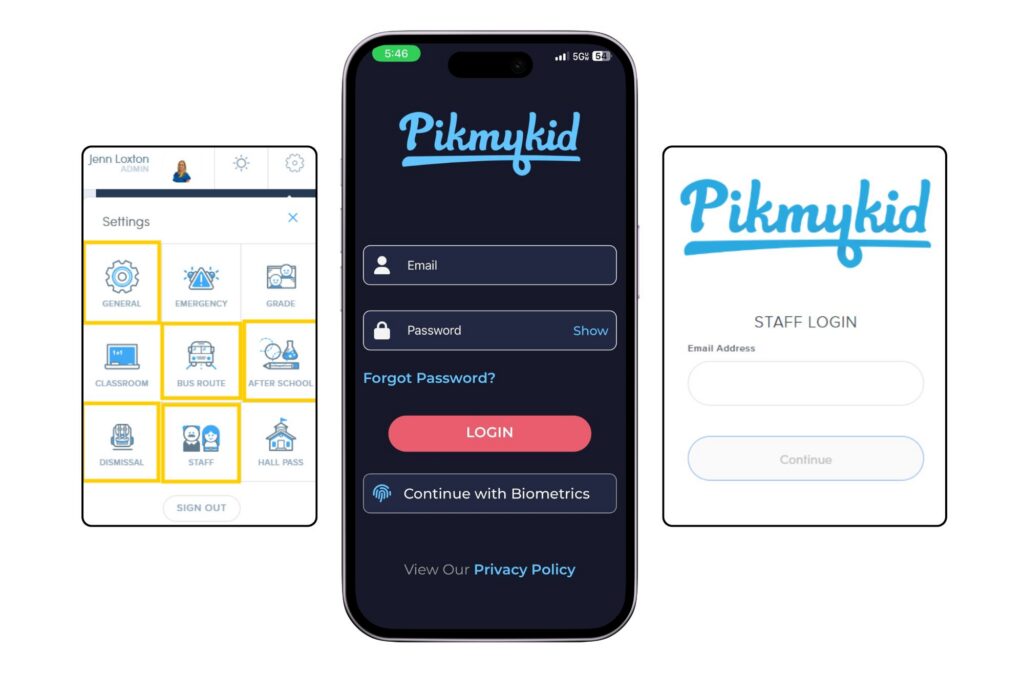
Staff will receive an email to claim their account. Once claimed, staff will login with their school credentials to schools.pikmykid.com for any device with a web browser. Can’t find the claim email? Go to schools.pikmykid.com, input school email address, click continue and use the ‘Forgot Your Password’ option to resend the email.
Staff can also download the Pikmykid Staff app to their smartphone to access many features of the portal. Staff members will use the same login credentials for both the portal and the staff app.
All staff members should verify their contact information in their profile when signing into the portal. After logging in, click on the user name in the top right corner & ensure the phone number and email address are accurate. Click Save Changes after any updates.
Settings
Staff with administrator access within the portal will be able to adjust settings in the portal. To adjust settings, click the Settings Wheel in the top right corner of the portal. To begin, a few key settings will need to be configured.
Settings Wheel
General Settings
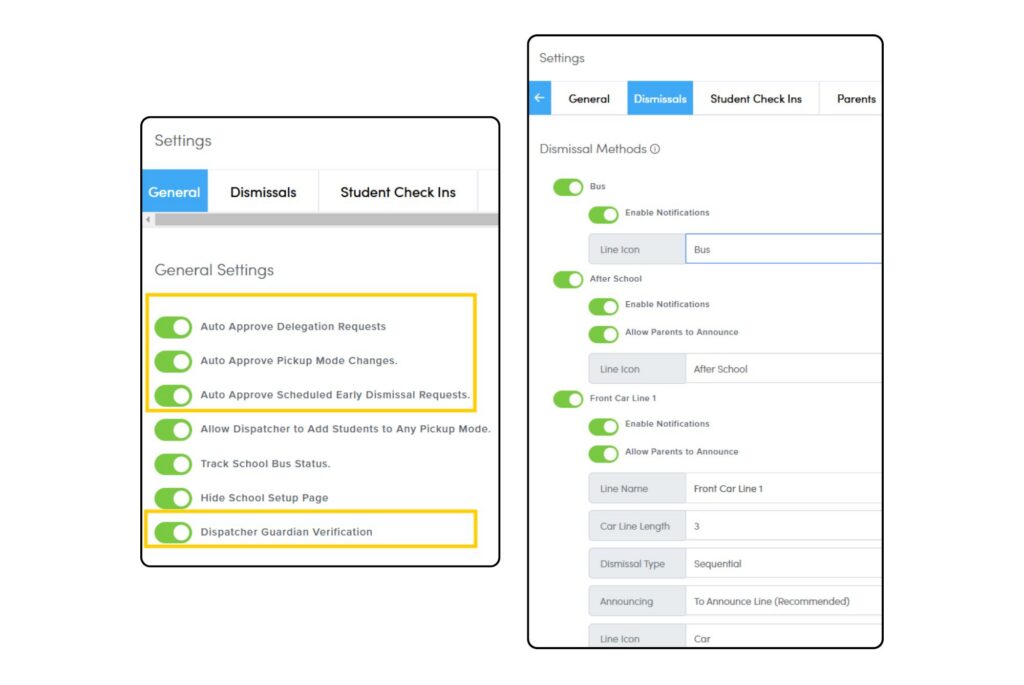
- Set up to Auto Approve parent requests for pickup and delegation changes or early dismissal. If this is toggled off, a member of your team will need to monitor the system for dismissal changes and then approve each one manually.
- Turn on Parent Guardian Verification for when parents do not announce through the Pikmykid Parent App. If toggled off at any time, staff can still choose to verify the identity of a parent, guardian or pickup delegate during the dismissal process, it will just not be required for every student.
- To configure dismissal modes, click on Dismissals along the top menu. Here you will toggle on the different modes of transportation that you are using for your end of day dismissal processes. For each mode, determine if you would like to Enable Notifications – this will notify parents when their student is dismissed.
Dismissal
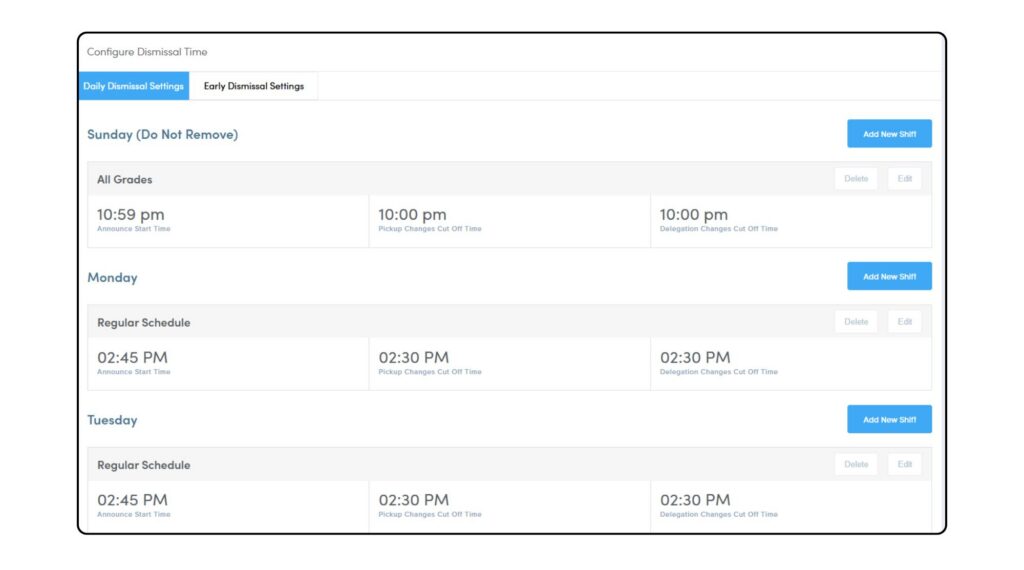
- Here you will configure your dismissal Announce Time & the Cut Off Time for changes made by parents through the parent app.
- Set the Announce Time for 10-15 minutes prior to your dismissal time; this is the time parents can start announcing their arrival to campus through the parent app.
- The cut off time for pick up mode and delegation changes should be set for 10-15 minutes before your announce time; this gives your staff time to review any changes made before your dismissal process begins.
Staff
- Staff members listed here will have access to the portal and will receive an email to claim their account. Schools who are manually managing their staff data can make changes to staff information here. If you are using a data integration method with your student information system for staff data, staff members will automatically be added and deleted to the Pikmykid portal when they are added/deleted within your SIS or SFTP file.
- Staff designated as an Administrator, will have access to adjust and change settings in the portal.

Bus Route
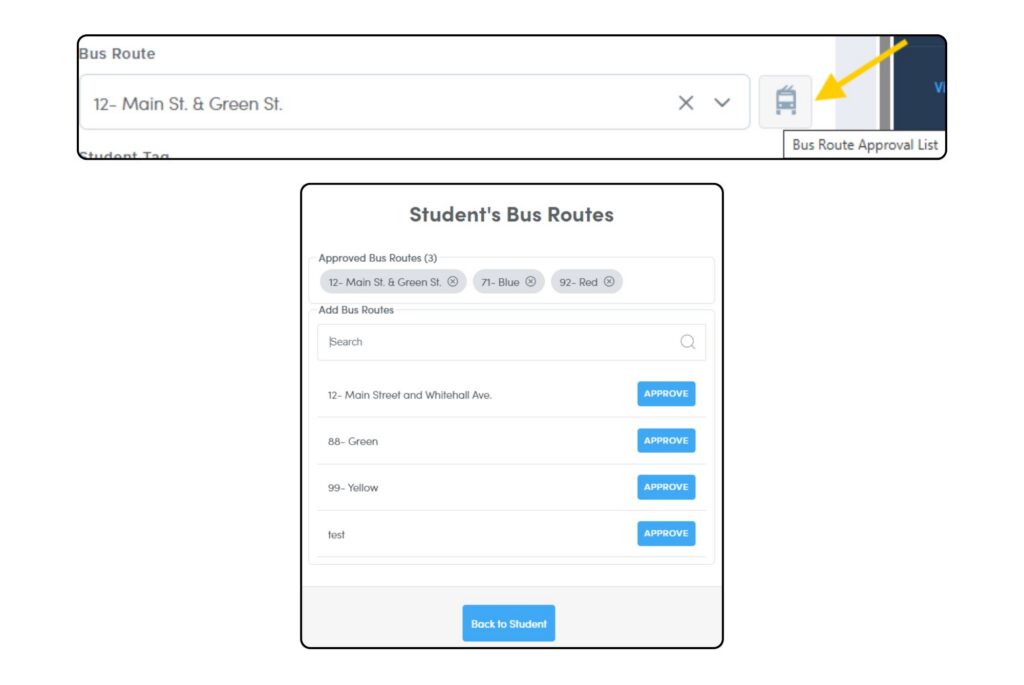
- If students dismiss to buses at the end of the day, you can add bus routes here. Simply select Add New Bus Route and input the route information.
- Students will need to be approved for a bus route(s) in order to choose that route as a pickup mode. If you are using SFTP as your data integration method, primary bus route information can be sent as part of the student records file.
- Here are the options for approving students to a bus route:
- Use the Bulk Edit Tool (recommended) to add multiple students to an approved bus route at once. Please see the directions below All Students Page for using the Bulk Edit Tool.
- You can also add students individually to a bus route from their profile. Go to All Students > Search for the Student by Name > Click on Pencil Icon > Select the Bus Icon on the Student Details page > Select the Approved Bus Route > Click Back to Student to Save.
After School
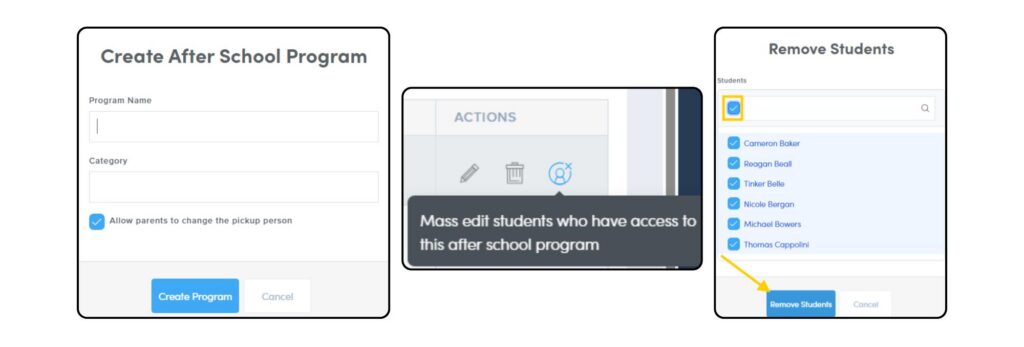
- If you have After School programs, such as aftercare or clubs, you can add them here. Select Add New After School Program and add the program name, a category (e.g. Clubs, After Care, etc.) and determine if you want to allow parents the ability to change the pickup delegate when picking up from this program.
- By default, all students will be approved to attend any newly created program. If needed, you can remove this approval as follows:
- Find the after school program on your portal (Settings Wheel > After School).
- Select the mass edit icon in the action column.
- Click on the checkbox at the top to select all students, then click on Delete Students. This will remove all students’ approval for the program. You can then use the Bulk Edit Tool (recommended for adding multiple students at once) or individual student profiles to approve the program(s) for the applicable students. Please see the directions below All Students Page for using the Bulk Edit Tool.
If you are using SFTP as your data integration method, primarily after school program information can be sent as part of the student records file.
All Students Page
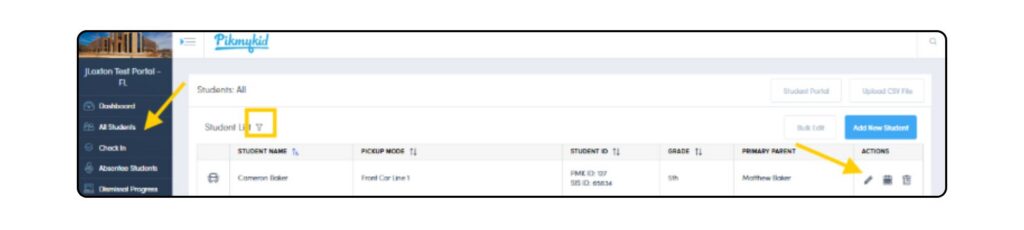
From the All Students page, you can get a quick snapshot of student information including primary mode of transportation and primary parent information. Staff can apply filters on the All Students page to search for a specific student, grade level, classroom and other criteria. To get a closer look at a student’s profile, select the pencil icon.
If you are using a data integration method with your student information system for student data, students will automatically be added and deleted to the Pikmykid portal when they are added/deleted within your SIS or SFTP file.
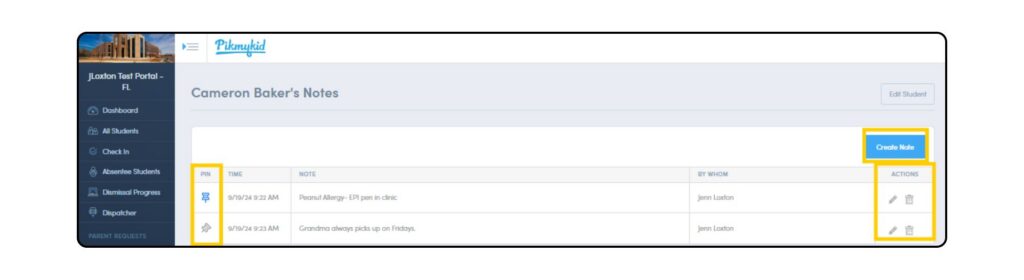
- Special Instructions Add important information and notes to any student’s profile. These notes will be visible to staff whenever they see the note icon next to a student’s name. Notes can be pinned to prioritize the most important information to the top as well as edited and deleted.
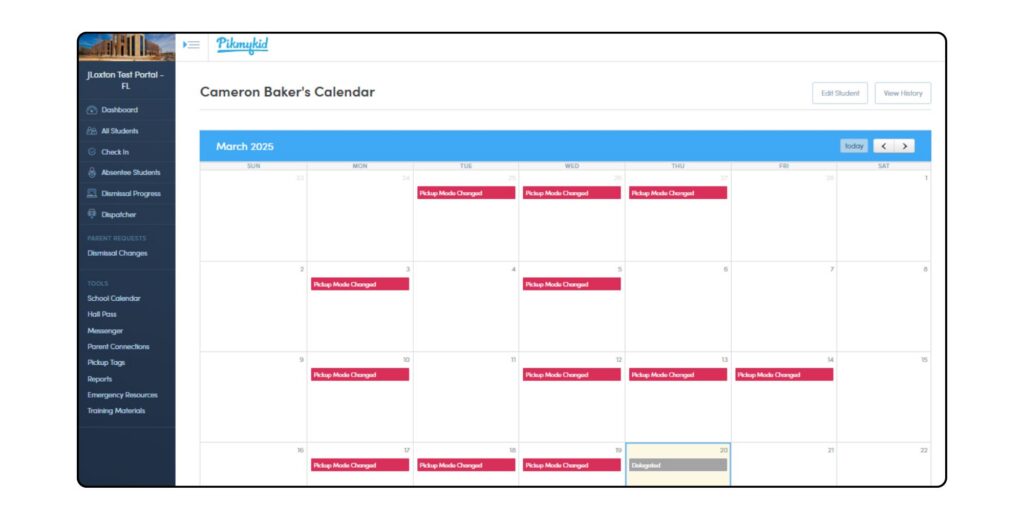
- Student’s Calendar Parents are encouraged to make changes through the Parent App to help reduce the workload for school staff. However, staff can make changes to a student’s calendar for pick up and delegation changes on behalf of the parent. Simply select the date on the calendar and create the change. Staff will be able to view the changes made whenever they see the calendar icon next to the student’s name.
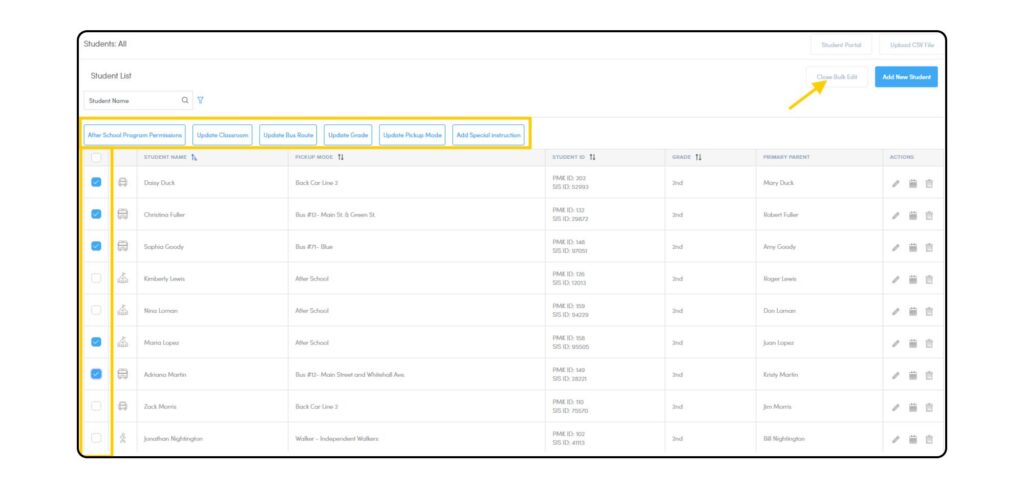
- Bulk Edit Tool You can use the Bulk Edit tool to update default pickup modes, classrooms, default bus routes, after school approvals, and students’ assigned grades.
Please Note Some of this information may be updated automatically if your school uses any type of data integration. If you have any questions about what information is included on your school’s integration, please reach out to [email protected].
To Use Bulk Edit
- Select the All Students tab on the left sidebar.
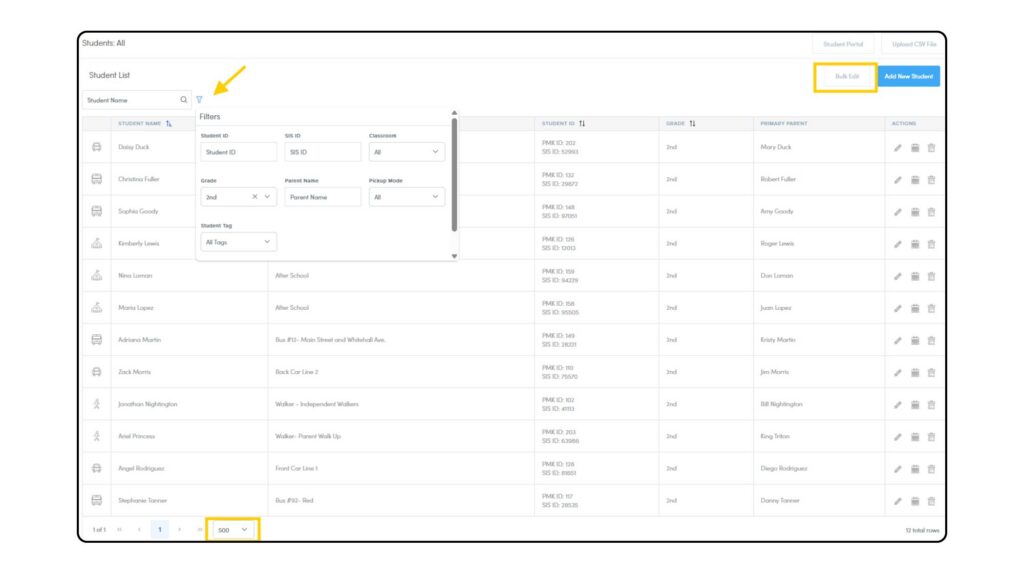
- Use the Filter Icon to search the students as needed. Change the Results Per Page number to a larger one as needed to include all filtered students in one page.
- Select Bulk Edit > then select all applicable students to be modified.
- Bulk Edit options will highlight in blue after students are selected – select an option.
- Follow the prompts to update.
- Close Bulk Edit tool.
Absentee Students
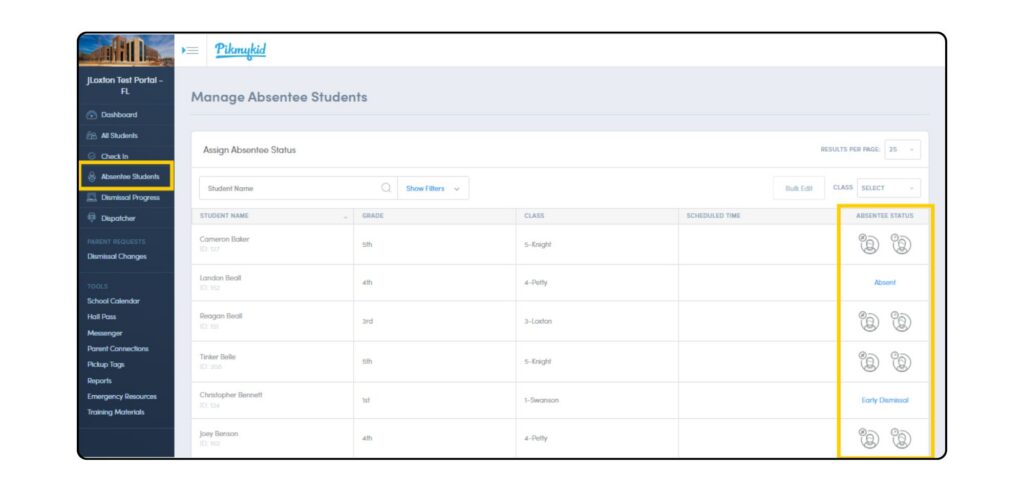
If you are manually managing student attendance, you can mark students as Absent or Early Dismissal from the Absentee Students page. Once a student is marked Absent or as an Early Departure, they will not be included in end of day dismissal processes. A student can be reinstated into the system by removing the absentee status on the Absentee Students page.
If you are using a data integration method with your student attendance system for student attendance, students will automatically be marked absent when your SIS or SFTP file sync occurs.
Want to learn more about data integrations for staff and student data, email us at [email protected].
Onboarding Resources For Parents
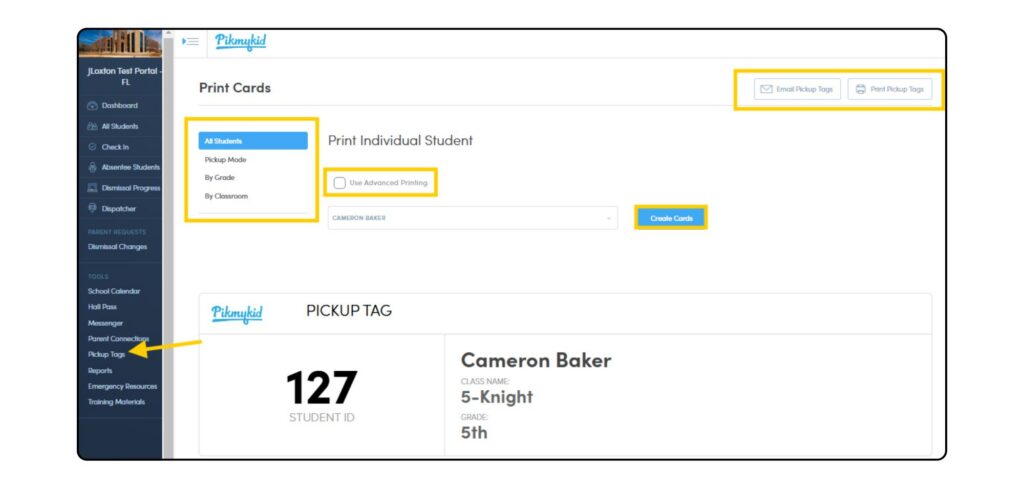
Pickup Tags
Located on the left sidebar of the portal, Pickup Tags are used by parents/guardians during the pickup process. Each student should be provided 2 pickup tags (one for each custodial parent) regardless of their mode of transportation home.
- Information on the tags can be customized using the Advanced Printing option
- For easier distribution, Pickup Tags can be printed by pickup mode, grade or classroom
- Pickup Tags can be resized by using the scaling option when printing
- Pickup Tags can be emailed to parents
Parent Connections Codes
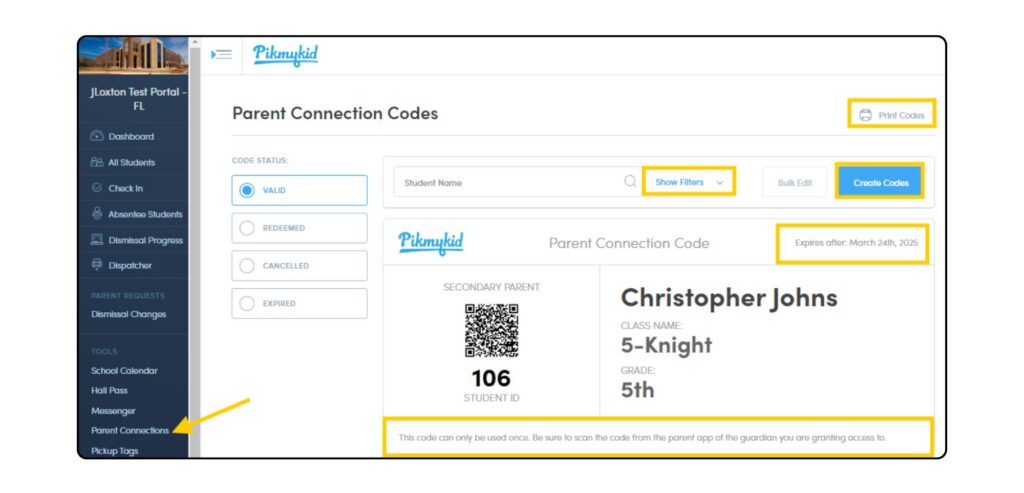
When parents download and register on the Pikmykid Parent App, they will automatically be connected to their student(s) by the phone number with the student’s profile. If a parent is not seeing their student listed in the parent app, or when registering on the app they are prompted to scan a QR code, the Parent Connection Code can be used.
- Two Parent Connections codes will generate; these should be given to the custodial parent(s). Parents can then add additional pickup delegates from the app.
- For security purposes, each code has an expiration date which can be adjusted prior to printing. If it is not scanned by the parent before the expiration date, the code will no longer be valid and a new code will need to be generated. Once the QR is scanned in the parent app, the QR code will no longer be valid.
The Parent App User Guide can be provided to parents to help them navigate the app. You can access the Parent App User Guide in Spanish as well.
Reports
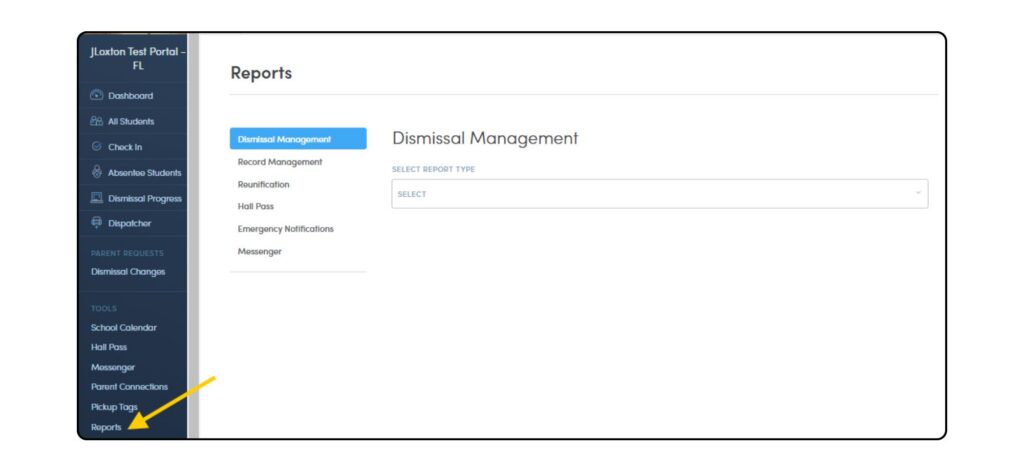
Various data can be accessed from the Reports page in the left navigation menu. We recommend that administrators review this section to familiarize themselves with the available reports.