

Download PDF
Click here to download a PDF with this information.
How To Initiate A Practice Drill
Following an emergency drill on your campus, a reunification drill should be conducted. This provides staff an opportunity to engage with the system and familiarize themselves with the reunification process.
* Best Practice: Have staff practice using the reunification student check-in during monthly drills (fire, lockdown, weather, etc.).
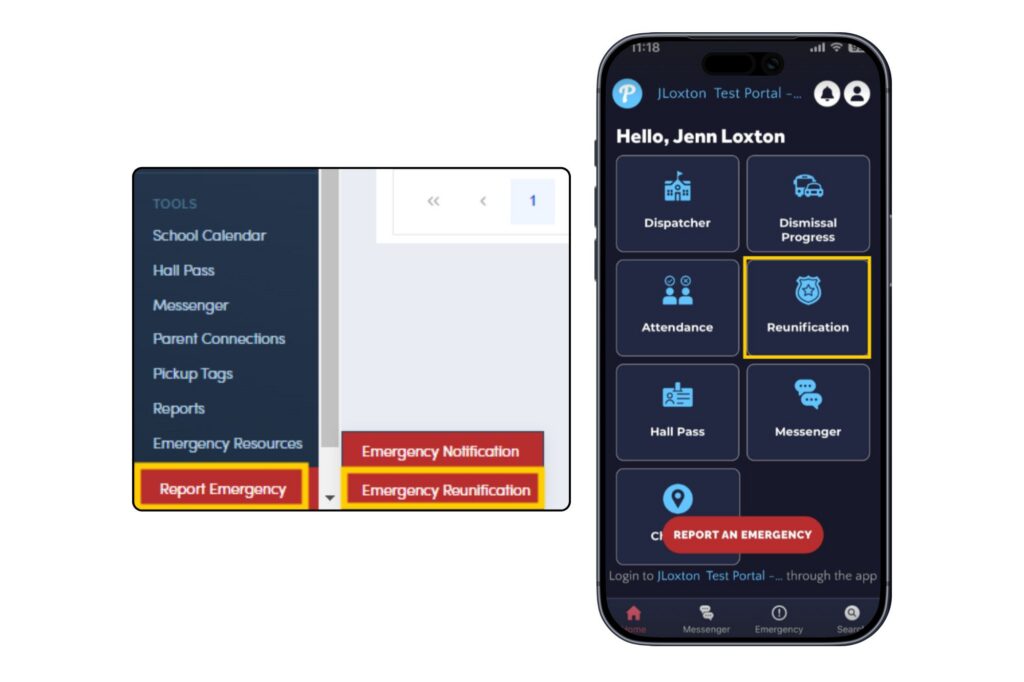
- Click on the red Report Emergency button in the lower left corner of the school portal and select Emergency Reunification. From the Pikmykid Staff App, select the Reunification icon from the homepage.
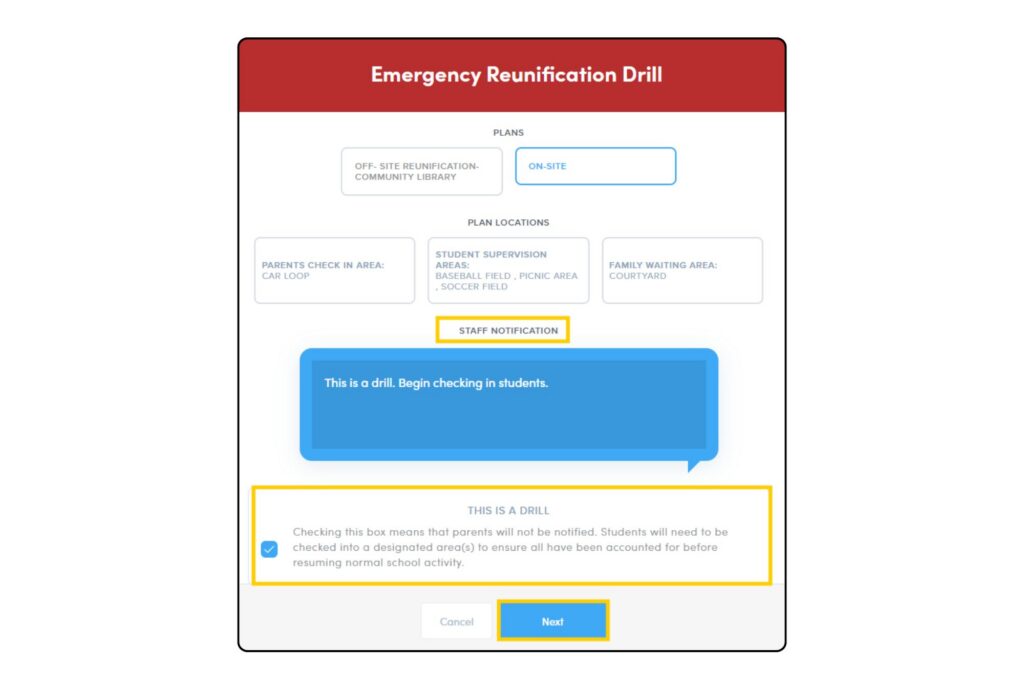
- Then select the plan for the type of reunification drill that is being conducted.
- Next create a Staff Notification; staff will receive an email and a text message.
- When initiating a practice drill check the box to confirm This Is A Drill and click Next. Checking the box for a drill means that parents will NOT be notified.
- Then click Start Drill. A pop-up will appear to confirm the school has entered reunification mode and staff will be able to begin the reunification process.
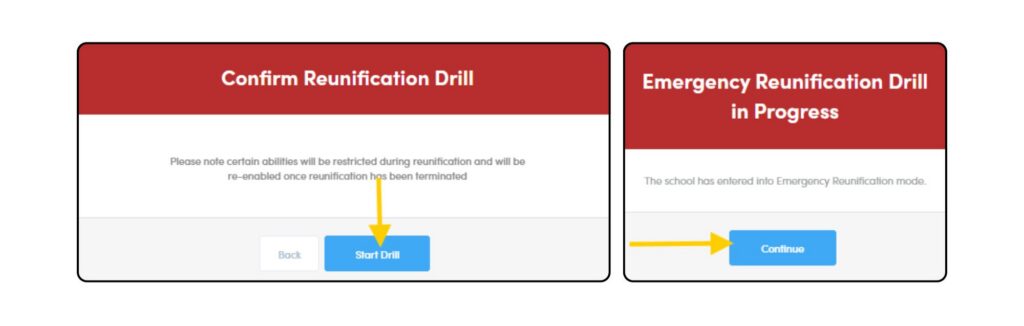
- Once the drill is complete, the drill should be terminated from the dashboard by a school administrator. During an emergency reunification drill, certain features and abilities of the portal are disabled until the drill has been terminated.
How To Initiate An Emergency Reunification
- Click on the red Report Emergency button in the lower left corner of the school portal and select Emergency Reunification. From the Pikmykid Staff App, select the Reunification icon from the homepage.
- Then select the plan for the type of reunification that is being conducted.
- Next create a Staff Notification; staff will receive an email and a text message.
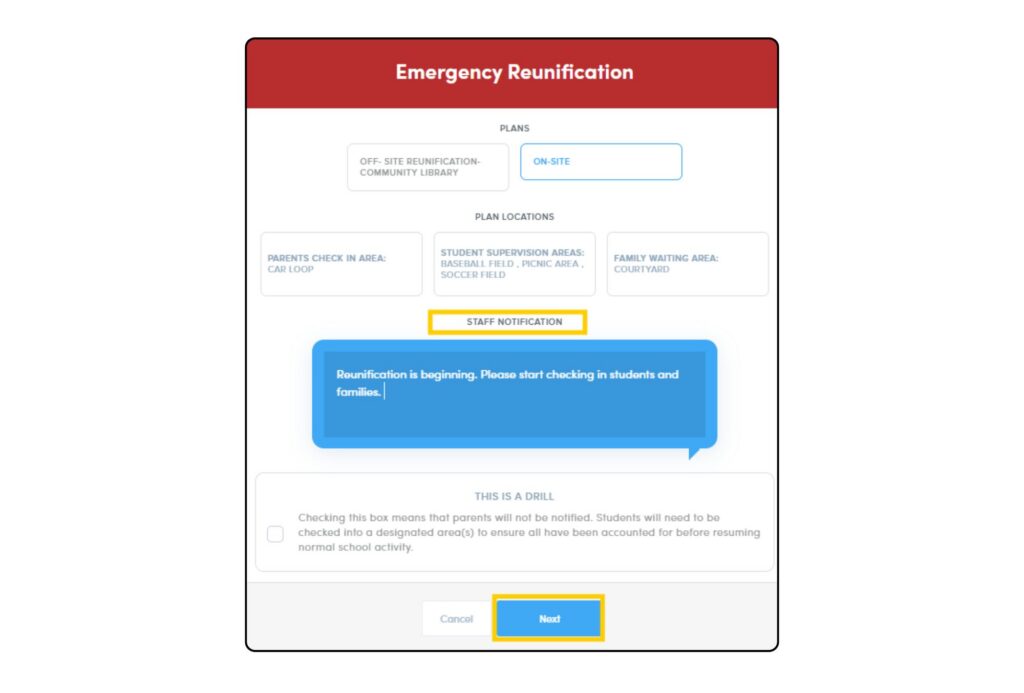
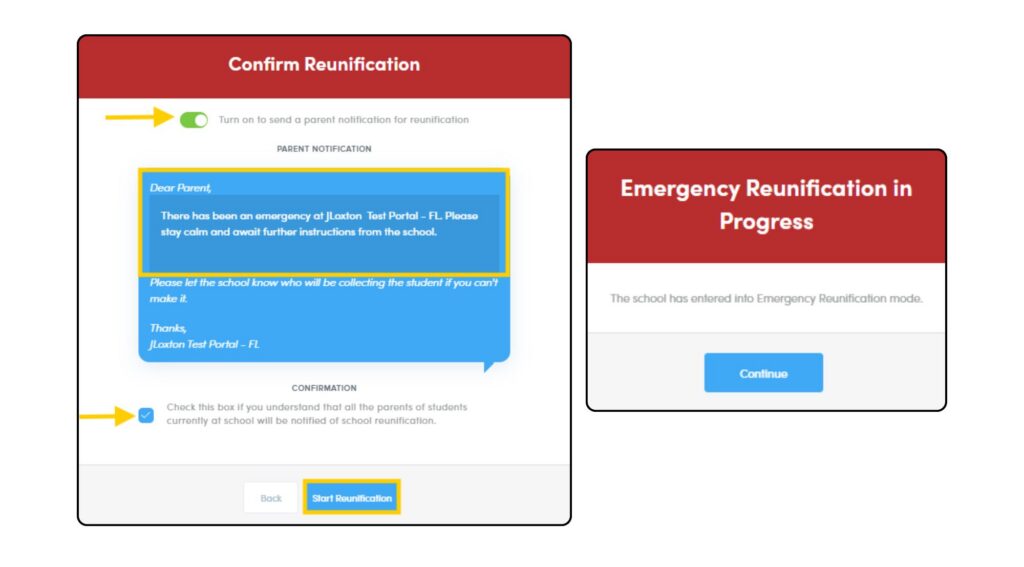
- Next toggle on the Parent Notification for Reunification. Staff have the ability to edit the Parent Notification prior to sending.
- Then confirm that all parents will be notified of the emergency reunification by checking the box and click Start Reunification. A popup will appear to confirm the school has entered reunification mode and staff will be able to begin the reunification process.
During an emergency reunification, certain features and abilities of the portal are disabled until the reunification has been terminated.
Additional Emergency Resources can be found in your school portal.