
Download PDF
Click here to download a PDF with this information.
This guide explains how to configure the “Track Off Campus” feature. This feature is designed for situations where certain users, like students with senior privileges or staff leaving for lunch, are presumed to be on campus and you need to log when they leave and when they return.
Enable The Track Off Campus Permission For A Role
First, you must grant the necessary permission to the user role that will be using this feature (e.g. “Seniors”).
- Navigate To Roles From your Visitu dashboard, go to Settings > Roles.
- Select & Edit The Role Find the role you want to configure (e.g. “Seniors”) and click the pencil icon to edit it.
- Enable The Permission Scroll down to the Permissions section and find the Track Off Campus permission and toggle the setting on.

Please Note Settings on the “Edit Role” page are saved automatically as soon as you make a change. There is no need to click a separate save button on this page. If you do not see the “Track Off Campus” permission in your list, please contact our support team at [email protected] to have it enabled for your portal.
Create Check-Out Reasons For Off-Campus Tracking
Next, you need to create the specific reasons that users will select when they leave campus.
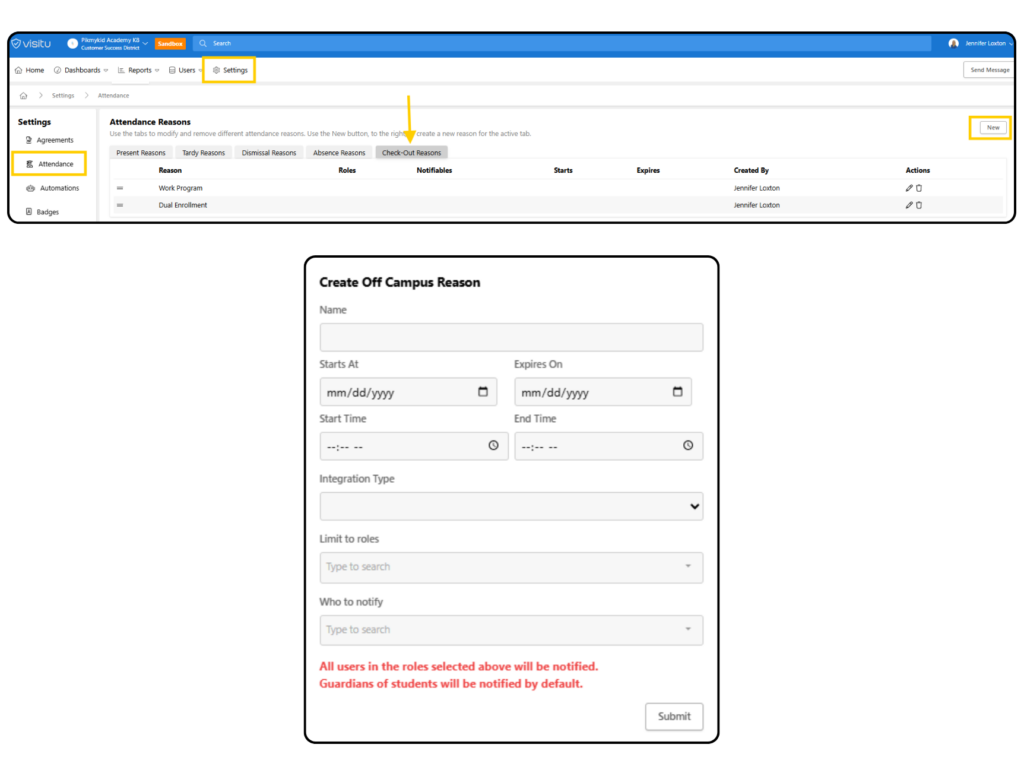
- Navigate to Attendance Settings: Go to Settings > Attendance.
- Click on the Check-Out Reasons tab.
- Create a New Reason:
- Click the New Reason button.
- In the “Create Off Campus Reason” window, give the reason a clear Name (e.g. “Off-Campus Lunch”).
- Limit To Roles It is highly recommended to limit this reason to the role you configured in Step 1 (e.g. “Seniors”). This ensures that only authorized users can see and use this option.
- Click Submit to save the reason.
Once these steps are completed, your system will be ready to track users leaving and returning to campus.